
Domain, controller and DNS: finding the editorial team
Lesson 1. Start with clear directory boundaries
In the previous module you prepared DC01 and WS01 with Desktop Experience, retained local access and checked their private network. The editorial team will now get a shared directory. A domain brings directory objects and domain accounts together under a name such as academy.test. A forest connects domains, a shared schema describing object types, and other directory information. Even a single domain exists within a forest. Our first domain will also be the root domain of a new forest. Adding a learning DC to somebody else’s existing forest requires different authority and a different process.
DC01 becomes the domain controller; WS01 becomes a domain member. DNS answers questions about names and service locations. Here DNS and AD DS run on the same VM, but perform different functions. A DNS answer checks neither a password nor permission to read a document. When role installation finishes, the server still needs promotion to a domain controller. Installing role files and creating the directory are separate stages. This distinction helps when the wizard says Installed but no domain has appeared.
academy.test is a learning namespace inside your lab. It needs no public website registration and should not be queried through public DNS. Every address, command and change belongs inside your two VMs; your personal Mac or Windows host is the management platform. Output examples below were composed for teaching. Your report’s address, version and timestamps must come from your lab observations.
Lesson 2. Create the domain with a ready-made wizard
On each VM open Win+R → ncpa.cpl, the Network Connections window. Find the single private-network adapter, then Properties → Internet Protocol Version 4 (TCP/IPv4) → Properties. Assign 10.77.0.10 to DC01 and 10.77.0.20 to WS01, with mask 255.255.255.0. Leave Default gateway empty. Set Preferred DNS server on both guests to 10.77.0.10, leaving Alternate DNS empty. These addresses apply only if your private segment does not conflict with another hypervisor network. If it does, choose another private /24 and replace both addresses consistently throughout the exercises.
Keep IPv6 and Windows Firewall enabled. A router or public “backup” DNS server does not contain academy.test. On DC01 confirm its name and run ipconfig /all in PowerShell. This built-in command reads network configuration; /all requests details. Record IPv4 Address, Subnet Mask, Default Gateway and DNS Servers. Before DNS installation, 10.77.0.10 does not yet answer DNS requests. This is an expected intermediate state.
Open Server Manager → Manage → Add Roles and Features. Select Role-based or feature-based installation, the local DC01, and Active Directory Domain Services. Choose Add Features to include management tools. Keep the proposed components and select Install. When installation completes, open the flag notification and choose Promote this server to a domain controller. The route is documented in Microsoft Learn’s AD DS deployment guide.
In Deployment Configuration, select Add a new forest and enter academy.test under Root domain name. In Domain Controller Options, keep DNS Server and Global Catalog selected. Record the offered default domain and forest functional levels for your release. Set a separate strong Directory Services Restore Mode, or DSRM, password. This belongs to recovery mode; keep it private and do not use it for ordinary sign-in. Under DNS Options, a warning about no parent-zone delegation can occur for a new isolated namespace. It does not require inventing an external DNS server. Investigate other errors individually.
Check the proposed NetBIOS domain name, ACADEMY. Keep default database, log and SYSVOL paths. Read Prerequisites Check. Resolve any blocking error on your VM. Once checks pass, select Install; DC01 restarts. Sign in as your learning ACADEMY\Administrator. A desktop alone is not the diagnostic outcome: next locate services and their records.
Lesson 3. DNS Manager and two first exercises
Open Server Manager → Tools → DNS. Expand DC01 and Forward Lookup Zones on the left. A zone is a portion of the namespace for which the server maintains records. Find academy.test and _msdcs information used by AD discovery; the tree display depends on created zones. The middle list has Name, Type and Data columns. Explore the tree before deciding a record needs manual creation.
Mini-exercise 1: find DC01’s Host (A) record. A connects a name to an IPv4 address. Compare Data with ipconfig. A wrong name or old address explains some problems, but matching values do not test LDAP availability. Mini-exercise 2: on WS01 read Get-Help Resolve-DnsName -Examples in PowerShell. Get-Help displays help; -Examples requests examples. Local help does not require internet, although a full help package might be absent. Then run:
Resolve-DnsName -Name dc01.academy.test -Type A -Server 10.77.0.10
Resolve-DnsName -Name _ldap._tcp.dc._msdcs.academy.test -Type SRV -Server 10.77.0.10
The ready-made Resolve-DnsName cmdlet performs a DNS query. -Name specifies the name, -Type the record type, and -Server explicitly targets our DC. In SRV responses read NameTarget, Port, Priority and Weight. SRV supplies a service hostname and port; A supplies that hostname’s address. Priority and weight are service-selection fields, unrelated to password quality or security severity.
Readiness means you can explain why WS01 uses DC01 for DNS, observe an A answer with 10.77.0.10, and observe an SRV target dc01.academy.test with LDAP port 389. This establishes discovery, not a secure connection or successful sign-in. If no answer arrives, compare the private network, addresses, DNS Servers field and DC01 state. A password reset does not address a DNS error.
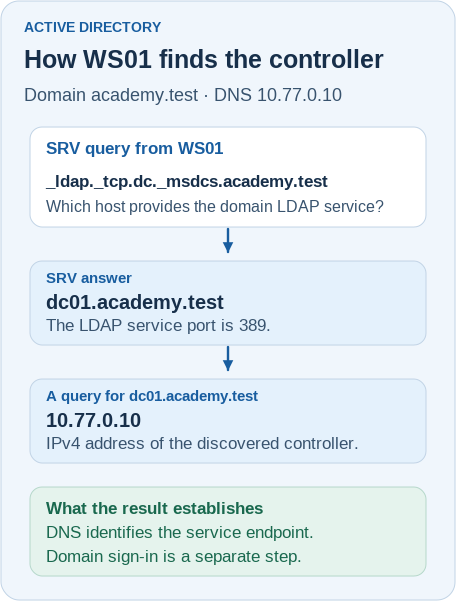
One VM provides DNS and the directory, but discovery and identity checking remain separate steps.
Practice: join WS01 and demonstrate discovery
Repeat the A query without -Server, using the configured DNS. If the explicit query works but the normal one fails, revisit WS01’s Preferred DNS. For a negative control, query the deliberately absent missing.academy.test against 10.77.0.10. Expect an absent-record error. That does not show DNS is entirely down: a repeated dc01 query should still answer.
On WS01, signed in as its local administrator, open Win+R → sysdm.cpl → Computer Name → Change. Under Member of, select Domain and enter academy.test. When credentials are requested, use only your lab domain administrator. Keep passwords out of command lines and reports. Restart WS01 after confirmation. Under Other user, sign in as ACADEMY\Administrator for this verification only; next module creates an ordinary user. Microsoft’s domain join instructions describe the process and client edition requirements.
Run whoami and hostname. The first shows the current process account; the second identifies its computer. Expect academy\administrator and WS01. System Properties should list academy.test. On DC01 open Tools → Active Directory Users and Computers, or ADUC, and locate WS01 under Computers. Read the object for now; leave the controller in Domain Controllers.
Save dns-and-join.txt under AcademyEvidence: client configuration, both query types, the absent-name result, account and computer after restart. Include observation time. Here is a teaching form:
A: dc01.academy.test -> 10.77.0.10
SRV: LDAP -> dc01.academy.test:389
Negative control: missing name -> absent
Client: WS01; domain: academy.test
Current process account: academy\administrator
Conclusion: discovery and join observed; file permissions not tested
Lesson 4. Interpret failures and retain a clean foundation
For “domain could not be contacted,” check the normal DNS query first, then network and time on both VMs. Microsoft Entra’s “work or school account” route uses a different identity system; use classical AD join here. Different time zones alone do not establish different clocks: compare the same UTC representation. Investigate synchronization sources before arbitrary clock changes.
For a join access error, preserve the exact message, account and whether WS01’s object is new. Modern updates strengthen computer-account reuse checks. Do not delete unrelated objects or disable checks. WS01 joins our new domain for the first time. For a repeat exercise, restore both original VMs or correctly leave your own domain while retaining local access.
Cleanup means signing out of WS01’s administrator session and closing DNS Manager. Keep the directory for subsequent lessons; leave automatically created records intact and avoid rolling DC01 back independently. Your portfolio includes a diagram of functions and evidence for A, SRV and join. Next we will examine directory objects, create ordinary Anna and Boris accounts, and distinguish an OU from a group.
Account identity and access rights
Change the conditions and observe this training model. It runs in your browser and does not change your computer.
Choose conditions above to see an explanation of the result.
Independent exercise · Russian
На стенде колледжа в Тамбове один из двух учебных клиентов перестал находить домен lab.example после замены сетевого профиля. В журнале изменений контроллера обновлений нет. Нужно проверить участок обнаружения домена до повторной попытки присоединения.
Evidence
У клиента W1 настроен DNS 192.168.78.10. На запрос SRV _ldap._tcp.dc._msdcs.lab.example он получает dc1.lab.example, порт 389. Запись A этого имени возвращает 192.168.78.10. У W2 DNS 192.168.78.1, на тот же запрос ответ NXDOMAIN. Прямой учебный запрос с W2 к 192.168.78.10 возвращает тот же SRV, что и на W1.
Assignment
Напишите заявку администратору клиента. Укажите различие конфигураций, результат контрольного запроса, требуемое изменение и критерий приёмки из обычной сессии W2.
Compare your reasoning
Сравнение локализует расхождение в выборе DNS-сервера для W2. После назначения внутреннего DNS штатный резолвер W2 должен вернуть цель SRV и разрешить её имя в ожидаемый адрес. Проверка завершается успешным обнаружением контроллера клиентом. Пароль учебной записи и состав групп по этим данным менять незачем.
Personal practice environment
Check an excerpt, find matching lines and compute the SHA-256 of the original text. Temporary data expires after 30 minutes or when you close the environment.
Sign in