
Your first AD lab: two machines and familiar windows
Lesson 1. What we are going to build
Imagine a small editorial team: Anna reads draft documents and Boris checks who may change them. Creating identical accounts on every computer soon makes old permissions difficult to track. Active Directory Domain Services, called AD DS throughout this course, stores information about users, computers and groups in a shared directory. We will build a tiny training editorial team, follow the route from a server name to permission on one text file, and learn to support configuration claims with observations.
A server is a computer acting as a provider of a service. Windows Server is an operating system designed for those roles. A domain controller, or DC, is a server with configured AD DS that stores the directory and participates in checking domain accounts. A workstation is the client where a person works. At this point neither machine belongs to a domain. Therefore, a fresh server not having ADUC under Tools is normal: the required role arrives in the next lesson.
The whole course is free, but your lab resources have conditions. Obtain Windows Server 2025 Standard Evaluation from the Microsoft Evaluation Center. Select Desktop Experience, because our first actions use windows. Server Core is a different installation option without the familiar desktop. The evaluation expires after 180 days; Microsoft requires online activation within the first ten days. For the client, use your own licensed Windows 11 Pro or Windows 11 Enterprise Evaluation, with a 90-day evaluation. These are time-limited evaluations. Record their end dates and follow activation requirements.
All exercises use two VMs that you own, rather than changes to your personal Windows installation, employer’s domain or home router. The author did not run Windows GUI exercises on the current Mac: the following route is grounded in documentation, and example result forms are learning examples. Your screenshots and values must come from your actions. If suitable hardware is unavailable, prepare a planned lab passport and mark the practical work as “not performed.”
Lesson 2. Compatibility and installation choices
Windows Server requires the x64 instruction set; check the official hardware requirements for your chosen release. Windows ARM running on Apple Silicon does not make an x64 Server guest compatible. A personal x64 PC with hardware virtualization is the straightforward route for this course. x64 emulation on ARM can be slow and needs a separate hypervisor compatibility check. Buying virtualization software or cloud resources is outside these exercises and is unnecessary for reading the material.
Use a ready-made hypervisor you learned in the foundation course: Hyper-V on compatible Windows, or another product documenting support for your chosen guests. Before creating a VM, find Create/New virtual machine, ISO selection, virtual disk, memory and networking in its documentation. For Hyper-V, start with Microsoft’s VM creation guide. A Private network connects VMs within a host; External/Bridged reaches the physical network and is unsuitable here. Other products use different names: select a segment between your two VMs, without LAN access or the home router’s DHCP. Host-only networking may also include the host; read the product’s description.
Our practical budget, rather than an official minimum, is two virtual processors, 4 GB RAM and a 60 GB disk for DC01; two processors, 4–6 GB RAM and a 70 GB disk for WS01. Leave memory for the host operating system; a host with 16 GB RAM and sufficient free disk space is a reasonable example. The Windows 11 guest must meet supported installation requirements, including virtual TPM and Secure Boot where required by its image. Do not bypass compatibility checks. If both VMs freeze while the host swaps heavily, stop installation and reduce concurrent work.
Create empty VMs with clear names, DC01 and WS01. Install only onto their new virtual disks. Before creating a domain, temporarily use NAT for official activation and updates if needed. Then shut down the guests, disconnect NAT and keep only their shared private network. Two adapters with different routes complicate troubleshooting, so the remaining lessons use one. Leave the host DNS configuration alone. Store the client’s local administrator password separately from the future domain account; you will need local access when leaving the domain.
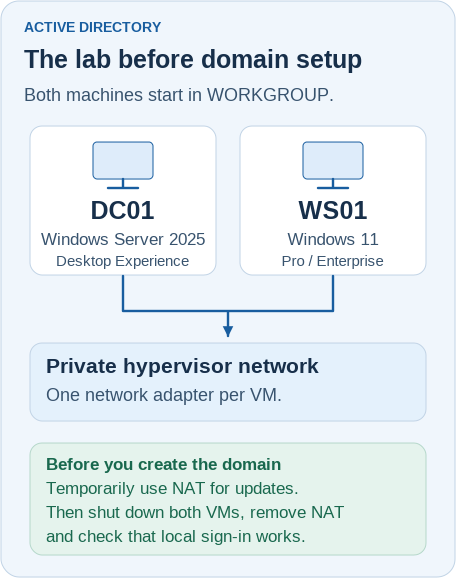
The diagram illustrates preparation order. It is an animated-teaching-style diagram, not a captured interface or evidence of completed installation.
Lesson 3. Learn the windows before configuring the directory
On DC01, open Start → Server Manager → Local Server. In the central area find Computer name, Workgroup, Ethernet and Operating system. These links open different settings: a name does not prove domain membership, and an adapter address does not identify its chosen DNS server. To rename the server, open Computer name, choose Computer Name → Change, enter DC01 and restart that VM. Rename the client to WS01 using Win+R → sysdm.cpl → Computer Name → Change. sysdm.cpl opens the built-in System Properties window; you are using a tool, not programming one.
Mini-exercise 1: on each VM open Win+R → winver. Copy the edition and build number into the passport. In PowerShell run hostname, a built-in command displaying the current computer’s name. Compare that name with the hypervisor window. This matters: a tab labelled WS01 can lead you to the wrong console if you have switched sessions. Confirm the machine before changing anything.
Mini-exercise 2: on DC01 open Server Manager → Tools → Event Viewer → Windows Logs → System. A log contains events, not a list of current settings. Select one row, inspect General and Details, and record Source, Event ID, Date and Time, and Computer. Use Filter Current Log to view the last hour, read one event, then choose Clear Filter. This removes a display filter; Clear Log deletes log entries and is unnecessary for this exercise. A red entry alone is not an incident: a temporarily unavailable network during setup also produces events.
Readiness is demonstrated through actions. You can identify the current VM and edition, find Workgroup, and read an event’s fields. Your passport includes two VMs, one private network, evaluation dates and retained local access. If you cannot distinguish Clear Filter from Clear Log, or see an employer’s domain instead of WORKGROUP, stop and return to the correct VM.
Practice: a passport for the editorial lab
In Explorer create C:\AcademyEvidence inside both guests. Open Notepad and save lab-passport.txt there; select a text file under Save as type. This is your lab notebook and must contain no passwords.
Check date: supplied by the learner
DC01: edition / build / RAM / network / WORKGROUP
WS01: edition / build / RAM / network / WORKGROUP
Evaluation ends: server ... ; client ...
System event: computer / source / ID / time
Isolation: private segment name; NAT disconnected
Status: prepared / not yet performed
For a negative control, shut down WS01 and inspect its hypervisor network settings. Confirm the selected network is the same private segment, rather than External. Inspecting configuration is more meaningful than an accidentally successful ping. Do not connect it to the home network for this check. After starting it, confirm that your original local sign-in still works: this is your way back.
Keep two winver screenshots and one System entry showing its fields. Explain in three sentences why Windows Server is not yet a DC, why NAT was used only during preparation, and which next step will create the directory. Public portfolio material must exclude license keys, passwords and details of your personal network.
Common mistakes include selecting Server Core instead of Desktop Experience, using a Home client that cannot join AD, downloading an incompatible architecture, running out of disk space, or retaining NAT as a second adapter. Correct the relevant guest’s preparation. Check product support for the guest before installation; host security changes do not resolve incompatible guest hardware.
Lesson 4. Keep the exercise repeatable
Shut down both VMs using Start → Power → Shut down. If the hypervisor supports saving the initial state, create a before-domain checkpoint for both powered-off guests or retain independent copies of their newly created disks. This is a lab convenience, not a production AD backup strategy. After joining a domain, rolling back one machine separately may leave trust and state inconsistent. In this course, returning to the original state means restoring both guests to the stage before domain creation.
Cleanup now means closing unnecessary windows and removing accidental ISO copies inside a guest if they consume space. Keep the passport. Retain the host installation image until you know it is no longer needed. In the next module we will assign private-segment addresses, install AD DS, create academy.test and demonstrate that the client discovers its own DC.
Sources
Microsoft links above support the installation route and platform limitations. The original author’s two-VM teaching example is Testo Lang, November 3, 2020. We adopt the idea of explaining decisions before clicking; the old images, automation and configuration are not carried over. Working notes backed by observations are discussed in the author’s AD and GPO learning article. Exercises and fictional data in this course were developed separately.
Account identity and access rights
Change the conditions and observe this training model. It runs in your browser and does not change your computer.
Choose conditions above to see an explanation of the result.
Independent exercise · Russian
Перед первым занятием зимнего семестра 2026/27 года в учебном центре Рязани преподаватель получил две виртуальные машины. В паспорте требуется Windows Server с графическим интерфейсом и отдельная клиентская Windows Pro. Оба гостя должны находиться в одном изолированном сегменте гипервизора, без подключения к сети класса.
Evidence
В свойствах EDU-S указаны Windows Server с Desktop Experience, сетевой адаптер Internal/AD-7 и адрес 192.168.77.10/24. У EDU-W указаны Windows Pro, адаптер Bridged/Класс и адрес 192.168.1.52/24. На сервере открывается Server Manager. На клиенте открывается Event Viewer. Домен пока не создан.
Assignment
Заполните паспорт стенда. Назовите одно расхождение, предложите исправленные параметры клиента и опишите проверку, которую проведёте до установки ролей.
Compare your reasoning
Клиент подключён к сети класса. Перенесите единственный адаптер EDU-W в Internal/AD-7 и назначьте свободный адрес, например 192.168.77.20/24 после сверки с описью. У обоих гостей сверьте имя сегмента и отсутствие дополнительных сетевых адаптеров. Выбранные окна помогают узнать системы, а изоляцию подтверждают свойства подключения в гипервизоре.
Personal practice environment
Check an excerpt, find matching lines and compute the SHA-256 of the original text. Temporary data expires after 30 minutes or when you close the environment.
Sign in