
DNS, SSL/TLS, SNI and CDN: after you enter an address
A name makes sense to you. What does the computer do with it?
Several different tasks happen between entering an address and seeing a page. Distinguishing them helps you respond to a certificate warning, a name-resolution failure or an access-denied response. Start in a familiar browser, then open its developer tools. You do not need to buy a server or install a scanner.
Lesson 1. Name, address and application response
DNS retrieves information associated with a name. An A record contains an IPv4 address, AAAA contains IPv6, and CNAME points to another name. DNS does not check permission to read an account page. One address can serve many sites; one site can use several addresses depending on time and location. A shared IP does not prove shared ownership.
A URL includes a scheme, name, optional port, path and parameters. In https://example.com/, the scheme tells the browser to expect HTTPS. The name helps select the resource. Later, WEB lessons examine HTTP requests and headers. For now, separate the tasks: DNS retrieves network information, a connection reaches a peer, and HTTP communicates with the application.
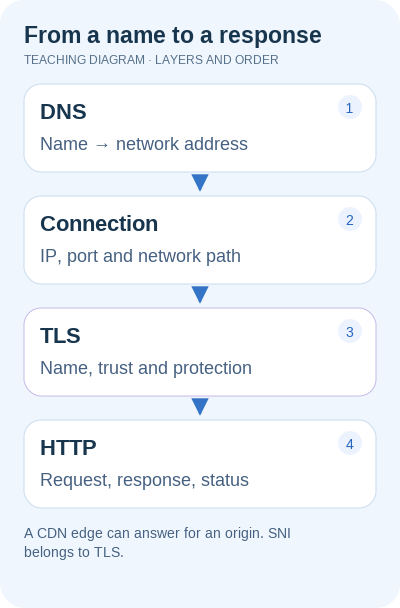
A CDN distributes content using delivery nodes. A nearby edge can return a cached copy or contact the original server, called the origin. Caching does not guarantee freshness, correct authorization or a known origin address. CDN and SDN look similar as abbreviations but describe different ideas; a later lesson explains SDN.
Lesson 2. SSL, TLS and certificates
SSL is a historical protocol family. Modern connections use TLS, although product labels sometimes retain “SSL.” TLS protects a connection segment and verifies a participant according to its trust model. A certificate associates names with key material and a signature. The browser checks the name, validity period and trust chain. HTTPS alone does not establish that a business is honest.
Open https://example.com/, an official demonstration domain. Click the site-information control beside the address and find connection or certificate details. Browser labels vary. Identify the certificate names, validity and issuer. Do not enter personal data; the exercise is about using the interface. If there is a warning, record its text and check your device clock rather than disabling verification.
SNI, Server Name Indication, carries a server name in a TLS ClientHello extension. It helps a shared endpoint select a TLS context. SNI is distinct from a DNS request and the HTTP Host header: they occur at different stages. Traditional handshakes expose some metadata, while ECH can protect an inner ClientHello. Do not assume every modern packet capture reveals a usable hostname. Inspect the actual exchange and client settings.
Lesson 3. Meet DevTools before using it for testing
DevTools are built into the browser. Common shortcuts are F12 or Ctrl+Shift+I on Windows/Linux and Option+Command+I on macOS; a menu entry also exists. Select Network, clear its list and reload example.com. An empty list before reloading is normal: it records requests, not the computer’s entire browsing history.
Select the document request and locate Request URL, GET, Status Code, Response Headers and Timing. Request describes what was sent; Response describes what came back. HTTP status belongs to the application exchange: 200 commonly indicates success, 404 a missing resource, and 403 a policy refusal. These are not DNS results. A Remote Address field describes the observed network peer, which may be a delivery edge rather than the origin.
Try a small sandbox task before the main exercise. Reload twice and compare rows. Enable the Doc filter, then remove it. Switch a selected row between Headers, Response and Timing. Close DevTools and reopen Network. You are ready when you can find a request, its URL and status yourself and distinguish incoming from outgoing information. Copying an authenticated request can expose cookies; our demonstration page requires no login.
Lesson 4. Read the same stages with curl
curl is an existing URL client. In Windows PowerShell use curl.exe; elsewhere use curl. Start with curl --version to inspect version and protocol support. --head requests headers, --verbose prints exchange details, --max-time limits waiting, and --noproxy '*' selects a direct connection for this invocation.
curl --noproxy '*' --head --verbose --max-time 10 https://example.com/
nslookup example.com
Find name resolution, connection attempts, TLS information and the HTTP response. Exact output depends on version and TLS backend. nslookup is a separate DNS client. Compare its answer with the browser’s network peer; differences can result from address family, cache, resolver or delivery location. Investigate these conditions before calling the discrepancy malicious.
The following observations are fictional teaching data, not measured example.com results:
NAME lookup: docs.example.invalid -> 192.0.2.20
TLS: certificate name matches docs.example.invalid
HTTP: status=200; Cache-Control=public, max-age=120
EDGE: Age=35; origin address not supplied
Age concerns the cached response’s age under HTTP semantics, not the age of a company. A familiar header does not necessarily establish a particular vendor. Record the observed field and your interpretation separately. Do not invent an origin address or describe these fictional values as your measurements.
Practice. Identify the failed stage
Create a table with action, expectation, observation and stage. Perform the normal HTTPS request. Then request http://127.0.0.1:1/ with --max-time 3 when no exercise service uses that local port. This tests a connection failure, not a DNS failure. A name ending in .invalid should normally fail resolution; if an organizational resolver returns its own page, record what it did rather than claiming the expected outcome occurred.
Save three browser observations as text: URL/status, certificate information, and cache headers or their absence. Draw DNS → network peer → TLS → HTTP and mark what you actually observed at each stage. You do not need to publish home addresses or organizational hostnames. These skills transfer to WEB request analysis, SOC interpretation of encrypted-traffic metadata and INFRA service diagnosis. Proceed when you can explain why successful DNS does not guarantee an available site and a TLS connection does not grant document permissions.
Primary sources
- DNS, RFC 1034
- SNI, RFC 6066
- TLS 1.3, RFC 8446
- HTTP caching, RFC 9111
- Chrome Network panel
- curl manual
- Cloudflare CDN introduction
Why a service cannot be reached
Change the conditions and observe this training model. It runs in your browser and does not change your computer.
Choose conditions above to see an explanation of the result.
Independent exercise · Russian
Медиатека перевела учебные видеозаписи на площадку доставки контента. Для старого имени media.example браузер открывает пробную запись. Для нового video.example он останавливается до показа страницы. Дежурному передали выдержку из двух попыток подключения.
Evidence
Для обоих имён DNS вернул 192.0.2.80, TCP-соединение установлено. В первой попытке клиент указал в TLS имя media.example, полученный сертификат содержит media.example; ответ HTTP 200. Во второй попытке указано video.example, а в сертификате единственное имя media.example. Клиент остановил проверку, строки HTTP во второй попытке нет.
Assignment
Отметьте последний успешный этап второй попытки и назовите несовпадающую пару значений. Составьте задание администратору площадки и опишите приёмку сразу для обоих имён.
Compare your reasoning
Во второй попытке установлен TCP и получен сертификат. Проверка имени video.example по сертификату не прошла, поэтому искать код отказа HTTP рано. На площадке нужно проверить привязку нового имени к обслуживающей конфигурации и подходящему сертификату. Приёмка требует корректной проверки имени и успешной загрузки пробной записи по каждому адресу.
Personal practice environment
Check an excerpt, find matching lines and compute the SHA-256 of the original text. Temporary data expires after 30 minutes or when you close the environment.
Sign in