
Backups, Versions and a Recovery Test
Reliability begins with getting data back. Mira sees a backup folder and feels reassured, but does not know what it contains, when it was created or whether its files open. Today you verify these points using the fictional plan. Simulate loss by renaming your own working copy rather than deleting real documents. No programming, separate server or paid subscription is necessary.
The route is: identify the loss you want to address → make a dated copy → change the working version → restore the older version into a separate location → open and compare → record limits. This prepares you for recovering working systems, while today’s object is just three fictional lines.
1. Copies, synchronization and versions solve different problems
A backup contains saved data from which you can recover a required state. Source, time, location and recovery method matter. A neighboring-folder copy teaches versions, but failure of the only disk may destroy both folders. A copy on a separate device you own helps with some failures of the original. A permanently connected backup device may also be changed or damaged.
Synchronization propagates current changes between locations. A deletion may propagate too. A particular cloud service may offer a bin or version history, but its retention and access must be checked separately. “Synchronized” does not mean that you tested recovery. A file’s modification date is not necessarily the backup creation date.
A version is a state at a particular time. Restoring yesterday’s plan returns yesterday’s lines rather than everything added today. Ask two questions: how much recent work could you tolerate losing, and how much time do you have to resume? For a practice plan, you might choose “one exercise and ten minutes”. That is your practice criterion, not a guarantee for every system.
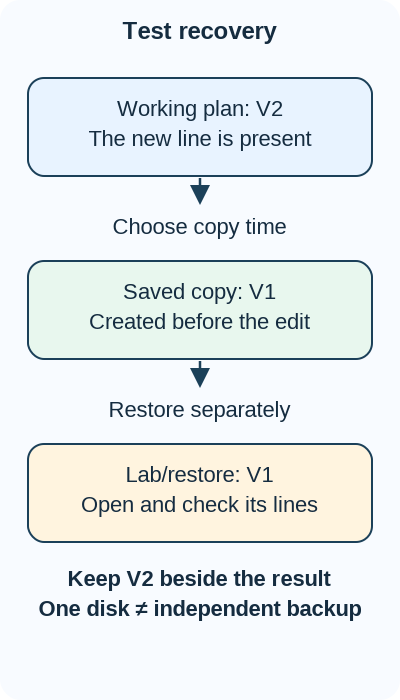
Open a restored file in a separate folder first. Do not replace current work before verifying the required version.
2. Tool introduction. Copying through the file manager
File Explorer, Finder and GNOME Files were introduced in the first module. They can copy this small file and let you test recovery manually. Open Windows with Win+E, Finder from the Mac Dock or Files from the Linux application menu. Find the current location, complete filename and Copy/Paste actions. Cut moves the source and is unsuitable for this copy exercise. GNOME explains backup approaches.
Mini-action 1: create backup-drill and restore in Lab. Save Lab/backup-drill/warmup.txt in the editor with COPY TEST ONLY. Close it and use the file manager to copy it into restore. Mini-action 2: open it from restore, read the sentence and inspect its path in file properties. The original warmup.txt should remain in backup-drill. If it disappeared, you may have moved it.
Readiness gate: two separate files exist, both open and you can identify their different paths. Do not simulate loss until passing this gate. If you already own a separate USB storage device, add it for the main case. Open it through the sidebar and create Academy-backup. Do not format it or accept erasure. If the OS cannot read it, stop the external-device branch and use backup-drill. Call that result “same-disk procedure practice”.
3. Tools. Where native automatic backups appear
An automatic tool saves on a schedule, but first needs selected sources and a storage destination. The following is an interface inspection; changing an existing family backup setup is unnecessary. No external service installation is required. Follow only your branch.
| Tool | Purpose and official access | Two mini-actions before use |
|---|---|---|
| Windows File History | Versions of user files; Microsoft guide | Control Panel → System and Security → File History: inspect status and selected drive; then Restore personal files: locate dates if copies already exist |
| macOS Time Machine | Mac versions and recovery; Apple guide | System Settings → General → Time Machine: inspect drive and latest result; then open its menu and locate backup browsing if already configured |
| Linux/GNOME | Tool availability depends on the distribution; GNOME Backups and Déjà Dup help | If Backups is installed, open it and locate storage; then locate selected folders and the last backup date without starting a whole-home backup |
To install Linux Backups, use the official application link or distribution store. Sections may be called Overview, Storage or Preferences depending on the version. Automatic-tool readiness: name the folders saved, destination and last successful backup time. If the application, drive or previous backups are absent, record “not configured”. The manual case remains possible.
An empty recovery window does not mean a file never existed; it may not have been included. Restore may replace the current version. Microsoft’s File History guide offers Restore to: use a separate Lab/restore location for your practice files. The main Time Machine branch uses the manual copy exercise so that you need neither restore the whole Mac nor change its disk configuration.
Practice. Recover the plan before an unwanted edit
- Open Lab/plan.txt. Use Save as to create Lab/backup-drill/plan-work.txt containing
LAB ONLY,Task: compare versionsandVersion: before change. Close, reopen and check all three lines. - Create a dated folder such as
2026-10-06-beforeinside Academy-backup on your owned storage device. If none is available, create it inside backup-drill. Copy plan-work.txt into it; do not use Cut. - Open the copied file and check before change. In results/backup-check.txt, record the copying time and shortened paths without a real username.
- Change the working plan-work.txt’s last line to
Version: after change, save and close. Rename only this practice file toplan-work-held.txt. This simulates the old name becoming unavailable while preserving the file. - Copy the plan from the dated backup folder into Lab/restore as
plan-restored.txt. If a filename collision appears, cancel and choose another name. Never replace a real personal document. - Open the restored file. Check three lines and before change. Separately open plan-work-held.txt: it should contain after change. Record the returned version, recovery time in minutes and recent changes that were absent.
- For external storage, close files opened from it and safely eject it using the eject icon or context menu. Reconnect and locate the dated copy; this adds a check that you were not only reading an old open window.
The following is an expected example. Replace it with your own observations:
Source: Lab/backup-drill/plan-work-held.txt
Saved version: Academy-backup/2026-10-06-before/plan-work.txt
Restored: Lab/restore/plan-restored.txt
Restored content: Version: before change
Working content: Version: after change
Storage: separate owned device OR same-disk drill
Recovery time: measured by learner
Predict: will after change return?
Identify when the chosen copy was created. Compare the working version at that time with its later state. Test your prediction by opening both files.4. Mistakes, solutions and result limits
An empty folder: check whether copying finished and where Paste was performed. Zero file size: reopen the source, confirm saving and make another copy under a new name. A new rather than old restored version: check the dated folder and whether the backup was overwritten later. An unreadable drive: do not format it for this lesson. Record the error and practice the procedure on your training disk. A request to free space does not authorize deleting personal backups.
Keep backup-check.txt and the working and restored versions. Delete only warmup.txt after confirming it is your test. Retain the dated copy until the course ends. Before removing all of Lab, inspect its contents. If you later use an encrypted backup archive, keep its password out of a public report.
For the practical motivation behind recovery testing, read the RTK Data Center author’s discussion in Russian. We do not transplant its server procedures to a home computer. Our original case checks a small text and recovery time. Having a backup filename does not establish that work can resume.
Bridge to a specialty: incident response must restore a needed function without repeating the cause of failure; digital forensics depends on originals, copies and action history. Your next-step deliverables are a tested plan-restored.txt and a report explicitly marked “separate storage device” or “same disk only”. Explain why a VM snapshot, synchronization and a neighboring folder are not interchangeable.
Continue recovery in context through incident response, and copy provenance through digital forensics.
What your computer stores
Change the conditions and observe this training model. It runs in your browser and does not change your computer.
A filename is not the whole story. Try revealing its extension.
Choose conditions above to see an explanation of the result.
Independent exercise · Russian
В типографии исправили раскладку афиши и по ошибке сохранили её поверх утверждённой. Облачная папка уже разнесла изменение на оба рабочих места. Заказчик просит вернуть вариант с тиражом 240 экземпляров, сохранив черновик для разбора.
Evidence
История документа за 12 ноября 2026 года: 09:10 — тираж 200, цвет зелёный; 11:30 — тираж 240, цвет синий; 14:05 — тираж 420, цвет синий. В письме согласования от 11:42 перечислены тираж 240 и синий цвет. Файл на втором компьютере сейчас показывает 420.
Assignment
Выберите точку восстановления и папку для отдельной восстановленной копии. Запишите в протокол время выбранной версии, два признака сверки и что останется в рабочей папке после вашей проверки.
Compare your reasoning
Версия 11:30 совпадает с письмом по тиражу и цвету. Сохраните её в отдельную папку проверки, откройте именно оттуда и сравните оба поля. В текущем документе по-прежнему должно быть 420. Появление файла на втором компьютере показывает работу синхронизации, а возможность открыть версию 11:30 проверяет восстановление.
Personal practice environment
Check an excerpt, find matching lines and compute the SHA-256 of the original text. Temporary data expires after 30 minutes or when you close the environment.
Sign in