
Your first workspace: Linux, files, and a terminal
How do you read a filename with a space?
Read first note.txt and compare the output with a request for a missing file. 40s · with narration and captions.
Video transcript
Lesson 1. Your Linux environment and first login
By the end of this module you will find the same file in Files and a terminal, preserve a copy, and explain its path. No programming is required. A Linux distribution combines the Linux kernel with applications, an installer, and update policies. The desktop provides windows; a terminal displays text; Bash interprets commands. These are different components. Linux also requires updates and access controls.
The main route uses Ubuntu Desktop 24.04 LTS with GNOME, an ordinary local account, and Bash. Use your own Linux computer or a separate VM. A macOS terminal or Windows command prompt does not replace Linux for later lessons. Containers and WSL without a configured systemd environment do not reproduce the whole course either. If Linux is already available, check it instead of reinstalling it.
For a new VM on an x86-64 host, install VirtualBox from its official downloads. Open Manager, choose New, name the machine Linux-Academy, and select an official Ubuntu 24.04 Desktop amd64 ISO. Choose manual installation, assign, for example, 4 GB RAM, 2 CPUs, and a new 30 GB virtual disk if the host has those resources. In Settings → Network keep NAT. Do not add Shared Folders. Start opens the installer. Choose your language, an interactive normal installation, and a local account such as student. Erasing a disk is appropriate only inside this new VM when the installer displays its new virtual disk. Do not perform that step on a physical computer. Restart the guest after installation and remove the ISO from its virtual drive.
These resources are a training example, not a performance guarantee. Apple Silicon cannot hardware-virtualize an amd64 guest as ARM: use a compatible ARM environment following UTM’s guide, which specifically describes Ubuntu 22.04. This course does not claim a tested Ubuntu 24.04 ARM installation through a 22.04 guide. For an exactly matching route, use an available x86-64 VM or your own GNOME Linux environment.
Astra Linux Special Edition 1.8 uses the Fly desktop and its “File Manager” and “Fly Terminal” applications; consult your edition’s manual. On RED OS 8 use the installed desktop’s application search and file manager. The GNOME instructions below are not presented as a RED OS screenshot. Access to Russian distributions and repositories depends on edition and supplier terms. All required course practice is available on Ubuntu. Bash, ls, and the other utilities are not described as certified information security products.
Lesson 2. Learn the window and command
In Ubuntu press Super, search for Files, and open it. Select Home in the sidebar. The path bar shows the parents of your current folder; the central area shows its contents. Press Ctrl+L to display a text address such as /home/student. Esc returns to the normal view. Right-click an empty area, select New Folder, and name it linux-academy. If that folder already exists, inspect it first; use a new name for a repeat attempt and replace the name consistently below.
Press Super again, search for Terminal, and open it. A prompt may show a username, host, directory, and $. Do not type the prompt itself. Enter each command separately:
pwd
cd ~/linux-academy
pwd
ls
ls -l
ls -a
pwd prints the current working directory. cd changes the directory in this shell window. A leading ~ denotes the current user’s home. ls lists names. Its -l option uses a long format: type/permissions, link count, owner, group, size, modification time, and name. That time is not necessarily creation time. -a includes hidden names starting with a dot, including . and ... The former means the current directory, the latter its parent. ls -la combines the two options. Names are case-sensitive: data and Data may be different directories.
cd .. moves to the parent. Bare cd returns home. An absolute path starts with /; a relative path is resolved from pwd. Spaces separate arguments, so quote a path such as 'data/first note.txt'. Tab completes a name; the up arrow recalls a previous command. Ctrl+C cancels unfinished input. Read a recalled command before running it.
Lesson 3. Two mini-practices and readiness gate
The first mini-practice is a navigation loop. Run cd ~/linux-academy, pwd, cd .., pwd, and cd linux-academy. Open the same folder in Files and compare its Ctrl+L address with the final pwd. The absolute paths should match. If they do not, fix navigation before creating more data.
For the second mini-practice, create a scratch subfolder using Files. Run ls in the terminal: the name should appear. Rename it to scratch-checked using Rename in Files, then repeat ls -l. The window and commands operate on the same file system. Delete only this empty folder using Move to Trash. The file manager’s Trash differs from command-line deletion; it is not a universal rollback.
Gate: you can open both applications, show your workspace’s path, return after cd .., and explain -l and -a without copying a block blindly. For No such file or directory, compare spelling and case with Files. Do not add sudo: higher privileges do not repair an incorrect address.
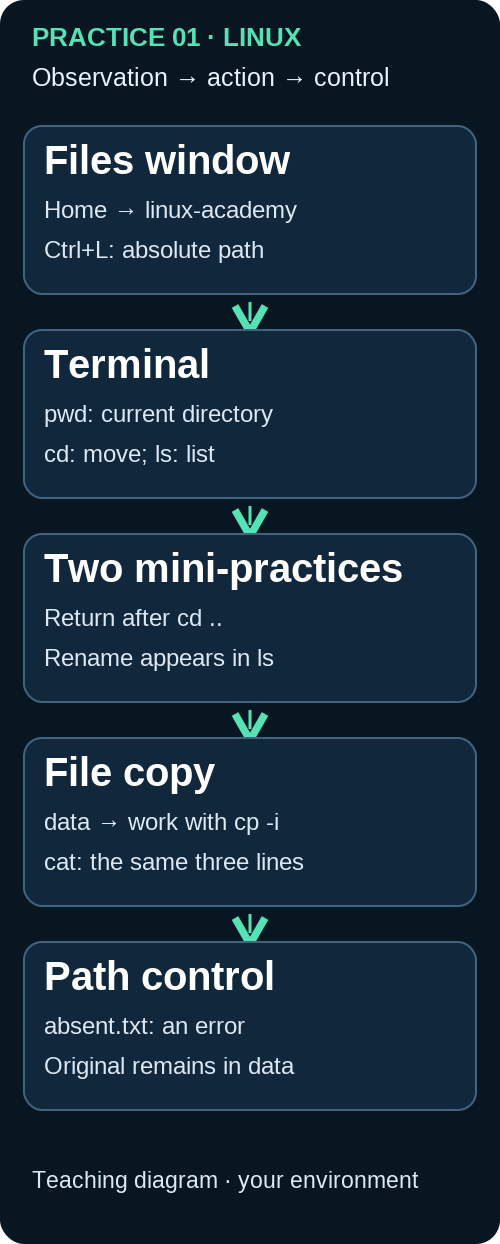
Caption: each observation confirms the previous step; read the copy before analyzing it.
Practice. Receive a training file
- Inside
linux-academycreatedata,work, andevidenceusing Files. Data holds original inputs, work holds editable copies, and evidence holds verification notes. Open Text Editor through application search, create a plain text document, and paste this fictional input:
asset=training-laptop
owner=student
purpose=local-learning-
Choose Save, navigate to
linux-academy/data, and use the namefirst note.txt. Save ordinary text: a formatted LibreOffice document is a different file type. Close the document, then reopen it from data. This checks the disk contents instead of merely seeing a buffer in an editor. -
Run these commands one at a time:
cd ~/linux-academy
ls -l data
cat 'data/first note.txt'
cp -i 'data/first note.txt' 'work/first note.txt'
cat 'work/first note.txt'
cat prints a file’s contents. cp takes the source first and destination second. -i asks before overwriting an existing destination. If an overwrite question appears, answer n and stop; use a new copy name for another attempt. A successful cp usually prints nothing. Verification is a separate read. Without quotes, cat data/first note.txt gives the shell two names.
-
Run the negative control,
cat 'data/absent.txt'. Expect an error about a missing file rather than the three original lines. Immediately runecho $?. Echo prints its argument;$?expands to the previous command’s exit status. A successful cat returns 0; this attempt returns a nonzero number. Its exact value depends on the program. Running another command between cat and echo replaces the status being observed. -
Save
evidence/workspace.txtwith Text Editor. Record the OS version from Settings → About, your paths, the three original lines, the copy command, the reopened copy’s result, and the negative-control error. This is your first portfolio artifact. It establishes file handling in your environment, not the absence of threats on the computer.
Next decision: proceed to safe editing when both files reopen identically. If their contents differ, establish which path is open and whether the document was saved. For cleanup, remove only scratch and an erroneous empty copy if you created one. Keep data, work, and evidence for the next module. This case changes no system directories.
Sources
- GNOME: Files, paths, and folder contents.
- Ubuntu 24.04: installing Desktop.
- GNU Bash: cd and pwd.
- GNU Coreutils: ls.
- Molechka’s firsthand walkthrough: paths, copying, and leaving editors. It informed the novice difficulties; command behavior was checked against documentation.
What your computer stores
Change the conditions and observe this training model. It runs in your browser and does not change your computer.
A filename is not the whole story. Try revealing its extension.
Choose conditions above to see an explanation of the result.
Independent exercise · Russian
В ноябре 2026 года диспетчер склада учится передавать сменщику ведомость приёмки. В учебной виртуальной машине рядом лежат черновик и принятая версия. Оба файла называются shift.txt. В задании сменщику нужен номер последней принятой партии.
Evidence
Текущий каталог по выводу pwd — /home/lab/shift/draft. Содержимое shift.txt в нём — batch=17. В каталоге /home/lab/shift/accepted одноимённый файл содержит batch=19. В заявке указано «принятая ведомость».
Assignment
Запишите, что покажет чтение shift.txt из текущего каталога. Затем составьте для сменщика команду cat с полным путём, которую он сможет выполнить из своей домашней папки. В квитанции укажите путь и номер партии.
Compare your reasoning
Относительное имя из draft приводит к партии 17. Команда cat /home/lab/shift/accepted/shift.txt вернёт batch=19 пользователю с правом чтения. Сменщик может проверить квитанцию, не зная, где был открыт ваш терминал. Пара «полный путь, batch=19» однозначно указывает, что он прочитал.
Read context before acting
Three ungraded decisions using Files, pwd, cat, and cp. Outputs are prepared teaching examples, not recordings of your VM interface. Every option has open feedback.
Two different addresses
Files (Ctrl+L): /home/student/linux-academy
pwd: /home/student
Expected file: data/first note.txt.
Relative data starts from the shell's current directory. Move into the window's folder and confirm matching paths before reading.
That creates a different location instead of inspecting the saved file. Resolve the directory mismatch first.
Elevation does not change the relative path. It would still search for data under /home/student.
Review every option
- Run cd ~/linux-academy, then pwd
Relative data starts from the shell's current directory. Move into the window's folder and confirm matching paths before reading.
- Create a new data folder in /home/student
That creates a different location instead of inspecting the saved file. Resolve the directory mismatch first.
- Run cat through sudo
Elevation does not change the relative path. It would still search for data under /home/student.
A spaced filename
cat data/first note.txt
cat: data/first: No such file or directory
cat: note.txt: No such file or directory
The two diagnostic names suggest argument splitting. Restarting does not test that explanation.
Quotes pass one spaced path. Check for the expected three lines; if it still fails, inspect pwd and filename case.
Changing the home directory is broad and unrelated to two arguments. Testing quotes addresses this specific failure.
Review every option
- Restart the VM
The two diagnostic names suggest argument splitting. Restarting does not test that explanation.
- Run cat 'data/first note.txt'
Quotes pass one spaced path. Check for the expected three lines; if it still fails, inspect pwd and filename case.
- Rename the entire home directory
Changing the home directory is broad and unrelated to two arguments. Testing quotes addresses this specific failure.
Unexpected overwrite
cp -i 'data/first note.txt' 'work/first note.txt'
cp: overwrite 'work/first note.txt'?
y replaces existing contents; execution alone does not establish that the new copy was read. Inspect the unfamiliar destination first.
Work may contain other training results. Removing it all is unnecessary for one filename.
-i offers a stop before replacement. Preserve the existing file, create a separately named copy, and verify it with cat.
Review every option
- Answer y and immediately call the result verified
y replaces existing contents; execution alone does not establish that the new copy was read. Inspect the unfamiliar destination first.
- Delete the entire work folder
Work may contain other training results. Removing it all is unnecessary for one filename.
- Answer n, inspect the destination, and choose a new name
-i offers a stop before replacement. Preserve the existing file, create a separately named copy, and verify it with cat.
Personal practice environment
Check an excerpt, find matching lines and compute the SHA-256 of the original text. Temporary data expires after 30 minutes or when you close the environment.
Sign in