
Applications, windows, and Activity Monitor
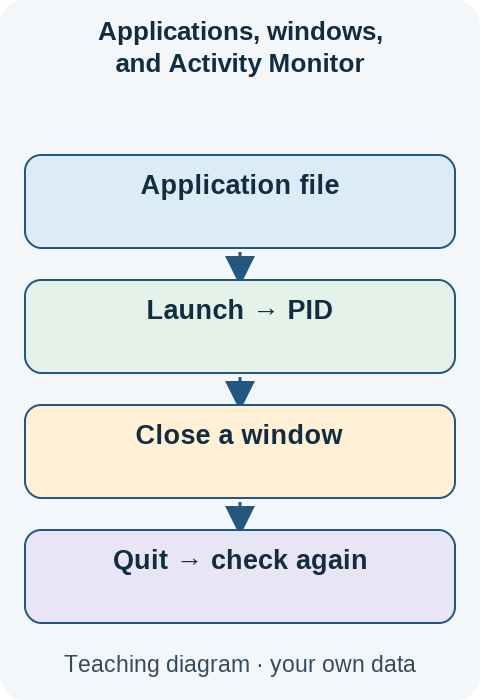
Original teaching diagram. Read from top to bottom; it explains the check sequence and does not depict a recorded interface.
Lesson 1. Where an application lives and what runs
The file note.txt stores text. TextEdit is an application that reads that format. While it runs, macOS creates a process with a PID, or process identifier. One application can have several windows and helper processes. A service without a window is also software. An open document and a Dock icon do not independently describe the computer’s complete state.
Choose Finder → Go → Applications. Many applications appear there; built-in components can also reside under /System/Applications. An .app usually represents a bundle, a specially structured directory displayed as one object by Finder. Leave Show Package Contents and internal editing for another context. Changing a resource can damage the application or its signature. Later, the trust module uses the installed TextEdit path only for inspection.
Installation depends on distribution. The App Store manages installation through its interface. A .dmg image mounts as a volume and often offers an application to drag into Applications. A .pkg launches an installer and may change several system locations. A file in Downloads, a mounted image, and an installed application are different objects. This lesson uses built-in TextEdit. You will study origin, updates, quarantine, and signatures before installing external UTM later. You do not need a downloaded cleaner to inspect processes.
Lesson 2. Learn Activity Monitor
Activity Monitor is included with macOS. Open it using Spotlight. Across the top are CPU, Memory, Energy, Disk, and Network views. The table contains process rows, and the search field limits visible rows. The View menu determines the collection, such as All Processes or My Processes. Access to some information depends on privileges. Apple’s guide documents the application.
In CPU view, find the process name, PID, user, and % CPU. If PID is hidden, enable the column through View → Columns or the column-header context menu available in your version. Clicking a column heading sorts the table; clicking again reverses the order. CPU use describes a sampling interval. A brief high value can represent ordinary processing. A multithreaded process can exceed 100 percent relative to one core. A resource value alone does not establish malware.
First mini exercise: open note.txt in TextEdit, enter TextEdit in Activity Monitor’s search field, and locate its process. Clear the field and find the row again. Second mini exercise: switch to Memory, read TextEdit’s memory use, and examine the Memory Pressure graph below. Application memory and overall system capacity describe different things. Do not free memory by stopping unfamiliar services. The readiness gate is that you can apply and remove a filter, read a PID, and identify the view from which a number came.
Lesson 3. Closing a window and ending a process
The red window control closes a window; Command-W normally closes the current document. Command-Q or TextEdit → Quit TextEdit requests application termination. Save your work first. Applications and macOS automatic management can behave differently after the last window closes, so record your actual observation. A Dock indicator helps, but Activity Monitor supplies a more specific process observation.
Activity Monitor’s stop control offers ordinary and forced termination. Force Quit can discard unsaved work and interrupt dependent operations. The exercise does not need it. Leave kernel_task, WindowServer, launchd, and organizational protection agents untouched. An unfamiliar name calls for investigating purpose rather than deleting its file. The table changes independently; a disappearing row was not necessarily caused by your action.
Practice. Connect a document, windows, and a PID
- Create a plain-text
process-note.txtinsideAcademyLab, writeSaved before observation, and save it. Also open your trainingnote.txt. - Locate TextEdit in Activity Monitor. Record the time, My Processes or All Processes selection, process name, PID, and the two document windows. Avoid capturing a full screen containing personal application names.
- Close one window with Command-W and inspect the PID again. Close the second saved window and check whether the process remains. A remaining process demonstrates that a program can live beyond its visible windows. If it disappears, document that actual behavior instead.
- Open TextEdit, save all documents, and quit normally with Command-Q. Check again after a few seconds. Describe the disappearing process or a remaining helper using its exact name.
- Reopen your document, read the current PID, and compare it with the previous value. PIDs may change and can later be reused. They identify process instances rather than permanent products.
Object: AcademyLab/process-note.txt
Application: TextEdit
Observation time and timezone: ...
Process name / PID: ...
After closing one window: ...
After normal Quit: ...
Limit: a process list is a momentary observation
For a negative control, clear the search field. Other processes should remain visible after TextEdit quits. Quitting one application does not shut down macOS. If searching produces no row, first check application launch, search spelling, and the selected process collection. A wrong filter does not establish absence.
Save process-card.txt with your event table and an explanation of document, window, and process. Optionally inspect one of your own observed PIDs in Terminal: ps -p 12345 -o pid,ppid,comm, replacing 12345 with the actual number. ps reports processes, -p selects a PID, and -o selects columns. PPID means parent process identifier; comm gives a command name. This reads state without stopping anything. An absent PID produces an empty table and does not describe its earlier history. Cleanup means quitting the training TextEdit normally while retaining the card. These observations prepare you for background jobs and log interpretation.
What your computer stores
Change the conditions and observe this training model. It runs in your browser and does not change your computer.
A filename is not the whole story. Try revealing its extension.
Choose conditions above to see an explanation of the result.
Independent exercise · Russian
Инженер бюро переводов в Перми готовит замер расхода памяти своего учебного редактора. После закрытия последнего окна оператор отметил в журнале, что редактор завершён. Ваша задача — восстановить последовательность по трём наблюдениям в «Мониторинге системы».
Evidence
В 11:40 открыто одно окно, процесс EditorLab принадлежит lab, PID 583, память 132 МБ. В 11:41 окон уже нет, у того же процесса PID 583, память 124 МБ. В 11:43 в меню приложения выбрано «Завершить», а в 11:44 строка исчезла из списка всех процессов при том же фильтре.
Assignment
Сдайте три строки наблюдений и подпишите момент, до которого продолжалась работа процесса. Назовите дополнительный столбец для проверки, если при новом запуске появится одноимённая строка.
Compare your reasoning
В 11:41 редактор работал с закрытым окном. К 11:44 процесс исчез из выборки. Зафиксировать точную секунду завершения по этим записям нельзя. При повторном запуске сопоставьте PID и пользователя. Разница в восемь мегабайт сама по себе ничего не говорит о завершении.
Personal practice environment
Check an excerpt, find matching lines and compute the SHA-256 of the original text. Temporary data expires after 30 minutes or when you close the environment.
Sign in