
Back up and restore your own file
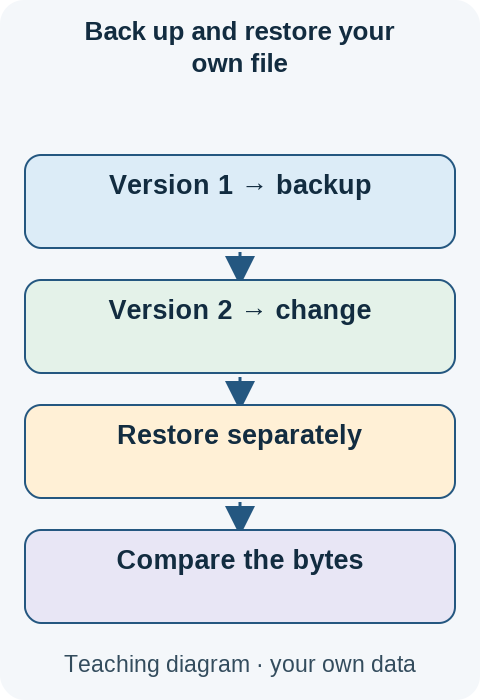
Original teaching diagram. Read from top to bottom; it explains the check sequence and does not depict a recorded interface.
Lesson 1. Define what must survive a mistake
A backup supports returning data after change, deletion, or storage failure. Synchronization distributes current state, potentially including accidental deletion. A nearby copy helps learn restoration but cannot survive loss of the same drive. We therefore test the return procedure separately from storage independence. A completed-copy message is not equivalent to a verified restore.
The required practice uses Finder, TextEdit, and your own AcademyLab, with no external disk or installation. A full optional branch uses built-in Time Machine and an available own backup disk. This course supplies no cloud lab. Without a disk, perform the local return and label Time Machine untested. Avoid a relative’s drive, workplace backup, or storage with unknown contents merely to obtain a result.
Complete two Finder preparations: duplicate note.txt into a backup-practice folder inside AcademyLab, then copy it back as a new copy-check.txt. Retain the original and open both copies. The readiness gate is knowing source and destination, avoiding replacement of existing objects, and understanding that both folders currently share one drive.
Lesson 2. Compare content with ready-made tools
The built-in cmp compares two files byte by byte. Read man cmp and exit with q. First exercise: run cmp ~/AcademyLab/note.txt ~/AcademyLab/note.txt, then immediately echo $?. Expect no output and zero. Second: compare note.txt with your changed note-copy.txt; expect a difference and a nonzero status. If they match, revisit their saved versions. This checks the comparison method rather than indicating a tool failure.
shasum -a 256 computes a SHA-256 content fingerprint. The -a 256 option selects the algorithm. First calculate the fingerprint of unchanged note.txt twice and compare the strings. Then calculate note-copy.txt and connect its fingerprint with its different version. Hashes depend on bytes, including line endings, rather than filenames. Matching hashes provide strong content comparison but establish neither authorship nor all permissions, ACL entries, and metadata. Readiness means understanding that silent cmp success is a verified comparison, while an untested restoration remains untested.
Lesson 3. Time Machine access and interface
Time Machine uses backup storage and version history. Open System Settings → General → Time Machine. It shows storage selection, state, and options; its menu can offer Back Up Now and entry into history. Restoration uses Finder windows, a timeline, arrows, file selection, and Restore. Apple documents backup preparation and individual-file restoration.
For first configuration, use only a dedicated empty supported drive that you own. Add Backup Disk and Set Up Disk select backup storage. If macOS proposes erasing a drive containing data, stop. Formatting unknown storage is unnecessary for this lesson. A managed Mac may require an organizationally approved disk and policy. Keep the backup-encryption password outside the report. FileVault on the system disk does not establish encryption of every external backup.
First preparation: read the last successful backup date and selected disk, or record “not configured.” Second: enter history from the current AcademyLab Finder folder, locate the timeline, and leave with Cancel without restoring anything. If no backup exists, defer the second exercise until the first backup completes. The Time Machine readiness gate requires known own storage, accessible history, a nonexcluded training folder, and a completed initial backup. A progress percentage does not satisfy it.
Practice. Return a version while preserving controls
For the required local branch, create restore-control.txt containing Version one. Save a separate restore-reference.txt with the same text and a copy in backup-practice. Change only working restore-control.txt to Version two. Copy the old backup into AcademyLab under the new name restored.txt without replacing the working version. Compare restored content with the reference, and working content with the reference:
cmp ~/AcademyLab/restore-reference.txt ~/AcademyLab/restored.txt
cmp ~/AcademyLab/restore-reference.txt ~/AcademyLab/restore-control.txt
shasum -a 256 ~/AcademyLab/restore-reference.txt ~/AcademyLab/restored.txt
The first comparison should match and the second should differ. Retain the reference until validation finishes. If the first differs, read your two training texts. You may have selected the wrong backup, changed a newline, or saved rich text. Repeat using exact plain text instead of diagnosing drive damage from one comparison.
For Time Machine, create separate tm-control.txt and tm-reference.txt containing Time Machine version one. Choose Back Up Now, wait for a successful date, and record the time. Change only tm-control.txt to a second version, save, and rename it to tm-version-two.txt. The original name is now free while the new version is retained. Open AcademyLab in Finder, enter Time Machine, select the completed backup containing version one, select only tm-control.txt, and click Restore. Apple restores it to its original location. If a filename conflict appears, cancel and check preparation. Compare the returned file with tm-reference.txt using cmp, then verify that tm-version-two.txt still contains version two.
An author account by mdevils on Habr illustrates the value of returning data after device failure. Its 2011 interface does not replace current Apple instructions. Save restore-card.txt with backup type, source version, date, restoration method, two controls, actual result, and independence limits. Record access errors and unavailable backups separately. Erasing drives or clearing history does not repair missing evidence. For cleanup, retain the checked reference and report, and remove only unwanted training restore copies. Preserve the backup drive and its history. This protocol prepares you for configuration changes and incident response.
What your computer stores
Change the conditions and observe this training model. It runs in your browser and does not change your computer.
A filename is not the whole story. Try revealing its extension.
Choose conditions above to see an explanation of the result.
Independent exercise · Russian
В мастерской технического перевода в Ижевске при правке учебного словаря потеряли строку. Редактор хочет вернуть её и сохранить сегодняшнее примечание. Есть вчерашняя копия и место для отдельного восстановления. Удалять текущий файл нельзя.
Evidence
В описи копии от 18:00 glossary.txt содержит 120 строк и запись «шпонка = key». Текущий файл содержит тоже 120 строк: эта запись пропала, зато появилась строка «муфта = coupling». Обе версии используют UTF-8 и завершаются переводом строки. Других отличий по построчному сравнению нет.
Assignment
Предложите последовательность восстановления в соседний каталог. Сдайте список различий и признаки результата, по которым редактор сможет принять исправленный рабочий экземпляр.
Compare your reasoning
Сначала сохраните текущий экземпляр. Восстановите вчерашний в отдельную папку и сверьте с описью. Добавьте пропавшую строку в рабочую копию текущей версии, сохранив сегодняшнее дополнение. При проверке получается 121 строка, обе контрольные записи встречаются ровно по одному разу. Построчная сверка с текущей версией показывает ровно одно добавление.
Personal practice environment
Check an excerpt, find matching lines and compute the SHA-256 of the original text. Temporary data expires after 30 minutes or when you close the environment.
Sign in