
Training VMs: Apple Silicon, Intel, and isolation
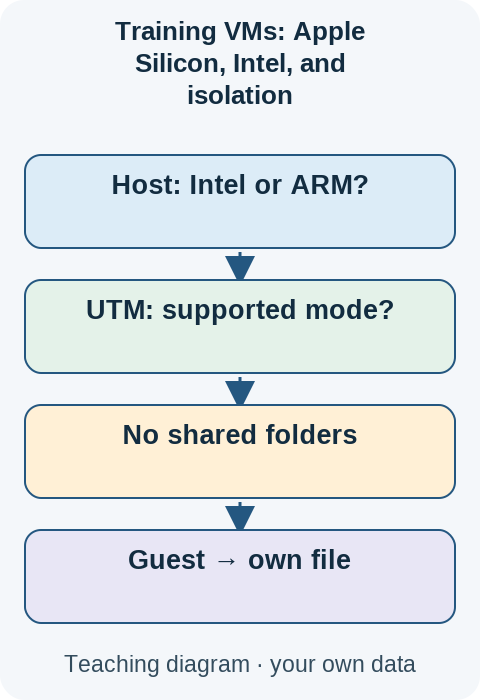
Original teaching diagram. Read from top to bottom; it explains the check sequence and does not depict a recorded interface.
Lesson 1. Choose architecture before an image
A virtual machine, or VM, is a guest operating system with virtual disk, memory, and devices managed by software on the host. The host is your actual Mac; the guest appears in a VM window. Users, files, and 127.0.0.1 belong to their respective environments. VMs support repeatable learning, but shared folders, clipboard, and networking can connect them to the host. “Virtual” alone does not establish complete isolation.
Read Apple menu → About This Mac. Chip identifies Apple Silicon; Intel Processor identifies Intel. Record macOS version and available memory without a serial number. Virtualization normally uses a compatible processor architecture, while emulation translates another architecture and has different constraints. Rosetta supports certain application translation; it does not turn an Intel host into a supported Apple Silicon host for every macOS VM.
UTM’s official macOS-guest documentation describes Apple Silicon hosts running macOS 12 or later. If the wizard lacks the relevant Virtualization and macOS 12+ choices, this route is unavailable. The author’s Intel Mac did not run a training macOS VM. On an Intel Mac, complete the availability card and continue required AcademyLab exercises on the host. Avoid modified images or disabling SIP to produce a missing option. A Linux or Windows guest is another subject rather than verified macOS behavior.
Lesson 2. Obtain UTM and learn its window
UTM is a ready-made virtualization product. Its official installation guide provides a paid App Store version and a free official-project GitHub build. The course uses the free stable route. Follow the download from the documentation, verify the source, obtain the DMG, open it, and drag UTM into Applications. Eject the image in Finder and launch the installed application. If Gatekeeper refuses, retain the message and check origin and supported version. Overriding policy is unnecessary to complete the module.
The main window contains a VM library, selected machine, and properties. + opens the wizard, Play starts the selected guest, and Edit or contextual editing opens configuration. A running guest window contains its display and controls for power, input capture, and devices. UTM’s power control differs from ordinary shutdown inside the guest; use the guest macOS shutdown menu. UTM’s controls documentation explains the distinction.
First mini exercise: open UTM, locate application-version information and the empty library, and import nothing. Second: click +, enter Virtualize/Virtualization, inspect whether macOS 12+ appears, and cancel. Record absence if applicable. The readiness gate requires known architecture, UTM version, compatible mode, available storage, and the ability to cancel without creating a VM. An access limitation is valid evidence, but not a successfully created guest.
Lesson 3. Prepare a separate guest
The following route applies only to supported Apple Silicon. UTM can automatically obtain a compatible macOS IPSW installation image, as its documentation recommends. No third-party image catalog is required. Downloads can be large and depend on network speed. An interrupted download is not an installed guest. First check host capacity for the installer and growing virtual disk.
- Click
+, choose Virtualize/Virtualization, then macOS 12+. Leave IPSW selection to the compatible automatic download. - In memory and CPU fields, retain resources for the host. An illustrative allocation on a sufficiently capable host is two cores and 4–8 GiB, not a universal minimum requirement. If memory is insufficient, use the host branch instead of allocating all RAM. UTM documents these fields.
- If the wizard asks for virtual disk size, choose enough capacity for the selected macOS and training files. Maximum virtual capacity does not establish available host space. UTM’s disk documentation distinguishes image storage from physical use.
- Name the VM
Academy-macOS, save, and wait for installation. Leave sharing empty instead of selecting Desktop, Documents, or your home folder. - Complete guest setup using a separate training local account. Avoid importing actual documents, workplace profiles, Keychain, or the host password. An Apple Account is unnecessary for the exercise; skipping availability depends on the setup version.
Practice. Check guest boundaries with your own file
While the VM is shut down, inspect Sharing and ensure the shared-directory list is empty. Leave clipboard sharing disabled and install no guest tools just for this exercise. Read Network. Apple-backend Shared Network allows host and guest services to see each other, as UTM’s network documentation explains. Shared does not describe a completely closed lab; Bridged connects more directly to the real network. This harmless file exercise requires recording the mode and avoiding unrelated addresses. Future hazardous work needs separately verified isolation that this lesson does not promise.
Start the guest. In its Finder home folder, create AcademyLab and use guest TextEdit to save plain-text guest-only.txt containing Created inside guest. Reopen it. In guest Terminal, run the familiar commands:
sw_vers
uname -m
pwd
cat ~/AcademyLab/guest-only.txt
Compare with the host. Before the exercise, confirm that this training name is absent there. After guest saving, inspect only your own host ~/AcademyLab/guest-only.txt. Its absence is a negative control for automatic transfer to that path, not proof against every interaction. If it appears, check which environment actually contained the TextEdit window and whether sharing was configured. Leave other personal folders outside the check.
Write vm-card.txt on the host manually: both architectures and versions, installation completed or unavailable, VM name, sharing, network, guest text, host comparison, and limitations. Shut the guest down through its Apple menu, wait for it to stop, and close UTM. Copy a VM bundle for backup only after full shutdown. A snapshot or saved state is not an independent backup. If no longer needed, remove only your own Academy-macOS after retaining the card. On Intel, a justified availability limit is the honest outcome rather than an invented installation.
What your computer stores
Change the conditions and observe this training model. It runs in your browser and does not change your computer.
A filename is not the whole story. Try revealing its extension.
Choose conditions above to see an explanation of the result.
Independent exercise · Russian
Учебный центр во Владивостоке готовит практику на Mac с Apple Silicon. Для двухчасового занятия выделены 6 ГБ памяти гостю. Слушателям нужно открыть локальный образ Linux и выполнить упражнения без выхода во внешнюю сеть и обмена файлами с хостом.
Evidence
Хост arm64 имеет 16 ГБ памяти. В описи доступны образы Linux arm64 и x86_64 с проверенными контрольными суммами. Шаблон А предусматривает виртуализацию arm64, 4 ГБ, отключённую сеть и пустой список общих папок. У шаблона Б эмуляция x86_64, 8 ГБ, общая сеть и подключённый каталог «Документы».
Assignment
Оформите паспорт виртуальной машины. Укажите шаблон, образ, окончательный объём памяти и две настройки изоляции. Добавьте проверку внутри гостя после старта.
Compare your reasoning
Шаблон А позволяет использовать совместимый образ arm64. Выставьте 6 ГБ по заданию. В паспорте фиксируются отключённый сетевой адаптер и отсутствие общих папок. После загрузки согласуйте архитектуру из гостевого отчёта с образом и убедитесь, что интерфейса с внешним маршрутом нет. Эти наблюдения относятся к данной конфигурации занятия.
Personal practice environment
Check an excerpt, find matching lines and compute the SHA-256 of the original text. Temporary data expires after 30 minutes or when you close the environment.
Sign in