
Background jobs: plist, launchd, and login items
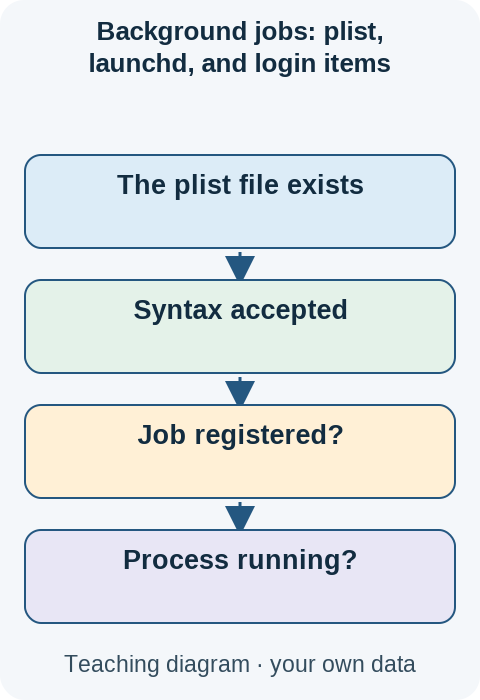
Original teaching diagram. Read from top to bottom; it explains the check sequence and does not depict a recorded interface.
Lesson 1. Why work continues without a window
Backup, update, and synchronization software can operate while its window is closed. You already learned to distinguish a window from its current PID. Now add launch configuration. launchd is macOS’s built-in job-management mechanism. A registered job can wait for an event without having a running process at this moment. Replace “the service exists” with a precise observation: a file was found, syntax was checked, registration was read, or a process was observed.
A LaunchAgent normally uses a user context, while a LaunchDaemon uses a system context. ~/Library/LaunchAgents belongs to your home folder. /Library/LaunchAgents and /Library/LaunchDaemons are system-wide installation locations, while /System/Library holds system resources. We place nothing there. A directory name does not establish execution, product ownership, or safety. Do not investigate an unfamiliar component by launching it.
For graphical inspection, open System Settings → General → Login Items & Extensions. Your version may use a slightly different name. Open at Login and background activity describe different properties. First mini exercise: read one familiar login entry, its name, and its kind. Second: find background activity, compare the explanation, and return without touching switches. An empty list is also a fact about this particular interface. Apple documents these fields.
Lesson 2. Learn plist and plutil before analysis
A property list, or plist, is structured data containing keys, strings, arrays, and Boolean values. Its uses extend beyond launchd. A .plist extension does not turn arbitrary text into valid structure. The built-in plutil checks and displays these documents. You need no additional plist editor or startup optimizer.
Open Terminal, run plutil -help, and find -lint and -p. The first checks syntax; the second prints a human-readable representation that is not intended as a stable machine-parsing format. First mini exercise: create a plain-text empty.plist in TextEdit using the example below and run plutil -lint ~/AcademyLab/empty.plist. Second: run plutil -p for that same path and locate the Training and true pair.
<plist version="1.0"><dict><key>Training</key><true/></dict></plist>Check that the saved name is empty.plist, without a .txt suffix or rich-text format. XML needs ordinary double quotes. If TextEdit substitutes typographical quotes, disable Edit → Substitutions → Smart Quotes for this training document, or paste plain source text. A missing-file error calls for inspecting the name; a syntax error calls for inspecting content. The readiness gate is a real OK, a readable structure, and an explanation that neither command launched a described program.
Lesson 3. Interpret without registering
Create a plain-text academy-example.plist inside AcademyLab using this original training example. It remains a configuration document in the training folder. The case contains no bootstrap, load, enable, or system-job changes.
<?xml version="1.0" encoding="UTF-8"?>
<plist version="1.0">
 <dict>
  <key>Label</key><string>example.academy.training</string>
  <key>ProgramArguments</key>
  <array><string>/usr/bin/true</string></array>
  <key>RunAtLoad</key><false/>
 </dict>
</plist>
Label identifies a job rather than a verified publisher. ProgramArguments starts with the executable program and can include further arguments. /usr/bin/true exits successfully without performing a useful application task. RunAtLoad specifies behavior when a job is loaded. False does not mean no event could ever start a registered job. Here, we do not register it at all. Apple Developer’s archived guide explains the model; use installed documentation for current command behavior.
When registration inspection is needed, the built-in launchctl provides print. First read launchctl help and launchctl help print, two safe preparations showing commands and target forms. The example launchctl print gui/501/example.academy.training uses a fictional UID of 501; replace it with your numeric id -u result. Avoid printing a whole system domain into public reports. A missing-job response concerns the particular domain and time, not the absence of a file on disk.
Practice. Check positive and negative specimens
- Run
plutil -lint ~/AcademyLab/academy-example.plist, followed byplutil -pfor the same path. Record accepted syntax separately from interpreted values. - Duplicate the document through Finder and name it
academy-broken.plist. Remove only the closing</dict>from this copy in TextEdit and save. - Run
plutil -linton the broken copy. Expect a mismatched or missing-tag message. This negative control checks syntax rather than maliciousness. - Check the original again. It should remain valid. If both fail, establish which document you edited and restore the original from the example.
job-card.txt
File exists: checked in AcademyLab
Syntax: accepted / error with exact message
Label and program: read from the document
Registration: not performed by this exercise
Running process: not started by this exercise
Next action: clarify owner before any operational change
Add an anonymized interface observation for one familiar own login item, or record that no entries are available. Keep backups, organizational agents, and accessibility components unchanged. An unfamiliar name first requires a connection to installation origin and an operational owner. Cleanup means removing only empty.plist and the broken copy after recording results. Retain the main plist and card. You can now distinguish stored configuration, format validation, and execution, which prepares you for network processes and events.
What your computer stores
Change the conditions and observe this training model. It runs in your browser and does not change your computer.
A filename is not the whole story. Try revealing its extension.
Choose conditions above to see an explanation of the result.
Independent exercise · Russian
В январе 2027 года учебный Mac печатного салона в Омске показывает уведомление о фоновой обработке макетов после входа оператора. Смена просит выяснить, когда должна начинаться сверка очереди и доказывает ли найденный файл её фактический запуск.
Evidence
В домашнем каталоге lab лежит Library/LaunchAgents/ru.example.proof.plist. В предоставленном разборе plist видны Label=ru.example.proof, RunAtLoad=true и ProgramArguments с первым элементом /Applications/ProofLab.app/Contents/MacOS/queue-check. Проверка синтаксиса plutil вернула OK. Время входа — 08:50. Сведений о загруженном задании и статусе завершения нет.
Assignment
Подготовьте карточку фоновой задачи. Укажите область действия, условие запуска, исполняемый файл и два свидетельства, которые нужны для подтверждения работы именно этим утром.
Compare your reasoning
Это пользовательский LaunchAgent. Условие RunAtLoad относится к загрузке задания в launchd. Корректный синтаксис показывает, что plist читается. Для вывода о запуске нужны сведения о регистрации задания в контексте lab и запись выполнения с его меткой или процессом в нужное время. Одно уведомление не связывает обработку с указанным файлом.
Personal practice environment
Check an excerpt, find matching lines and compute the SHA-256 of the original text. Temporary data expires after 30 minutes or when you close the environment.
Sign in