
First day: Finder, paths, and plain text
Will editing a copy change the original?
Duplicate a file, change one line in the copy and reread both saved documents. 39s · with narration and captions.
Video transcript
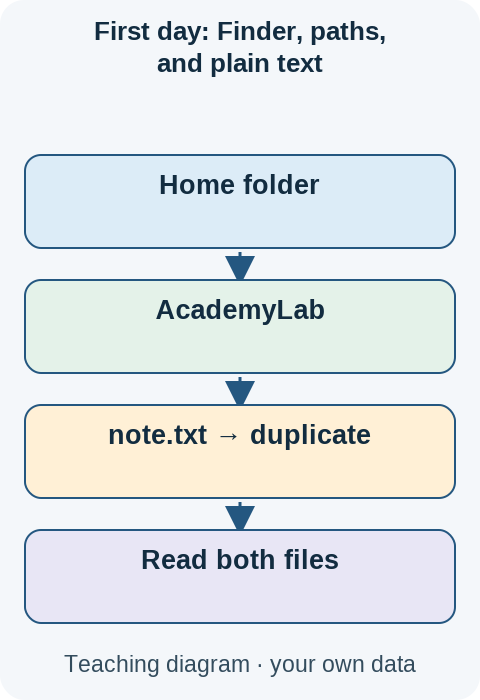
Original teaching diagram. Read from top to bottom; it explains the check sequence and does not depict a recorded interface.
Lesson 1. Find your own working area
This module assumes only that you can switch on a Mac and sign into your account. macOS manages the device; an application performs a task; a file stores a result. Finder displays files, TextEdit edits text, and a browser opens pages. An application icon and a document can appear next to each other, but quitting an application does not delete a saved document. Use only your own training text. Keep passwords, conversations, photographs, and workplace documents outside the exercises.
Finder and TextEdit are included with macOS. There is nothing to purchase or download. Click Finder’s smiling icon in the Dock, the row of application icons usually at the bottom of the screen. If the Dock is hidden, move the pointer to the bottom edge. The menu bar at the top belongs to the active application. After clicking inside Finder, its name appears at the left. This matters because File in another application can perform a different operation.
A Finder window has a places sidebar on the left, selected-folder contents on the right, and navigation, view, and search controls above. Recents is a collection of objects rather than a folder for saving your work. Choose Go → Home. Your home folder belongs to your local account. We will create AcademyLab there; this literal folder name is the same in both languages. A home folder’s short name may differ from a person’s displayed name.
First mini exercise: select Downloads in the sidebar, then return through Go → Home. Downloads normally sits inside your home folder. A downloaded file is not necessarily an installed application. Leave old unfamiliar downloads unopened. Second mini exercise: choose View → Show Path Bar and select Downloads. Read the location chain at the bottom and compare it with the window title. Return home, choose File → New Folder, enter AcademyLab, press Return, and double-click the folder.
Lesson 2. Names, paths, and file formats
A path describes the sequence of folders leading to an object. Our sample /Users/learner/AcademyLab/note.txt uses learner as a fictional account name; do not type that name on your own Mac. The initial / means the filesystem root. Other slashes separate components. /System contains system resources, /Applications contains many installed applications, and /Users contains home folders. Leave these folders in place. Finder can display a localized label that differs from the actual path spelling.
An extension is the ending after a dot, such as .txt. It helps select an application but does not convert the contents. Renaming text to .jpg does not create an image. Choose Finder → Settings → Advanced and enable Show all filename extensions. If you prefer a file-specific check, select your training file, press Command-I, and expand Name & Extension. Apple’s extension guide documents these controls.
Press Command-Space, enter TextEdit, and select the built-in application. Spotlight searches for applications and objects; using it does not require downloading a search result. Click New Document in the initial dialog, or choose File → New. The document window contains a text area, a title above it, and menu commands. New documents may use rich text, or RTF. Choose Format → Make Plain Text. If the menu already offers Make Rich Text, plain text is active. This exercise needs no styles, tables, or pictures.
Complete two small preparations before the main task. Type Training only, save as warmup.txt in AcademyLab, close it, and reopen it from Finder. Create another plain-text document containing Second file, save as warmup-two.txt, and inspect both names. If you produced .rtf or .txt.txt, inspect the format and actual extension with Command-I. You are ready when you can show the folder, open both files, and explain where they were saved.
Lesson 3. Copying and moving answer different questions
Command-D duplicates a selected file beside its original and lets the system add a name suffix. Command-C copies an object for pasting with Command-V. Dragging between locations can have different effects, so we will use explicit duplication here. Moving something to Trash also does not provide an independent backup. Trash belongs to the device, while a synchronized deletion can spread through a cloud service.
Saving writes changes to the chosen document. Read the window title before editing. Several similar windows may refer to different files. Check properties and location instead of relying on icon appearance. Apple’s TextEdit guide explains document creation and format conversion. Closing a document and reopening it from its known folder gives you a useful check of what was actually saved.
Practice. Demonstrate that two files are independent
- Create a plain-text
note.txtinsideAcademyLabwith the training lines below. Save with Command-S and close its document window. - Select
note.txtin Finder, press Command-D, and rename the duplicate tonote-copy.txt. Keep the.txtextension. - Open only the copy. Change the second line to
Version two, save it, and close it. - Open both files from Finder in turn. The original should still show the first version while the copy shows the second. This is a negative control for propagation: editing the duplicate should not change the original.
AcademyLab
Version one
No personal data
If both changed, inspect each window’s path; you may have opened the same file twice. If a file seems missing, return home and inspect AcademyLab. Searching by name alone does not establish the intended location. If TextEdit offers cloud storage, expand the save dialog with the control beside the name and choose your home training folder. Reopening the document tests saved text rather than relying on memory of a previous window.
Create file-map.txt and record the folder location, the two filenames, their relevant lines, and the checking method. Replace your account name with learner in anything shared publicly. This small artifact prepares you for investigation because it distinguishes an object from a similar name. During cleanup, move only warmup.txt and warmup-two.txt to Trash through Finder after checking them. Retain the main pair for later modules. The readiness criterion is that you can find the folder without help, explain path and format, and repeat the independent-copy check. Terminal receives its own introduction after this foundation.
What your computer stores
Change the conditions and observe this training model. It runs in your browser and does not change your computer.
A filename is not the whole story. Try revealing its extension.
Choose conditions above to see an explanation of the result.
Independent exercise · Russian
В ноябре 2026 года учебной медиастудии Казани перед вечерней вёрсткой нужен простой текст с номером выпуска. В Finder видны два документа с именем «Выпуск». Оператор уже один раз передал редактору вчерашний вариант. Работайте с карточками файлов из учебной папки.
Evidence
В окне свойств первого файла указаны «Черновики/Выпуск.rtf», формат RTF и строка «Выпуск 41». У второго — «Сдача/Выпуск.txt», простой текст UTF-8 и строка «Выпуск 42». В заявке требуется передать копию выпуска 42, сохранив оба исходника.
Assignment
Опишите маршрут копирования в пустую папку «Передача» и две проверки полученного файла. Приведите в квитанции полный путь внутри учебной папки, формат и первую строку.
Compare your reasoning
Правильная квитанция содержит «Передача/Выпуск.txt», UTF-8 и «Выпуск 42». Сверьте строку, открыв копию в текстовом редакторе, затем убедитесь, что файл с тем же содержимым остался в «Сдаче». Простое изменение расширения у RTF оставило бы внутри разметку.
Mac files: observation and next action
Three ungraded cases with open feedback. All observations are fictional training examples rather than recordings of the author’s screen.
Collection or folder?
Recents is selected in the sidebar. The AcademyLab location has not been read.
Recents collects objects from different locations. This view does not establish a specific destination folder.
Home provides a defined location. Create AcademyLab and check its position in the Path Bar.
System resources are unnecessary for your note. Place the training object inside your home folder.
Review every option
- Save directly inside Recents
Recents collects objects from different locations. This view does not establish a specific destination folder.
- Go → Home, then AcademyLab
Home provides a defined location. Create AcademyLab and check its position in the Path Bar.
- Create the folder in /System
System resources are unnecessary for your note. Place the training object inside your home folder.
Plain text is required
The actual saved name is warmup.rtf. The requested result was warmup.txt.
TextEdit converts content to plain text. Then inspect the name with Command-I and reopen the file.
This changes only the name. Contents can remain RTF even though the extension looks suitable.
Built-in TextEdit handles this operation. Installation does not replace understanding the format.
Review every option
- Make Plain Text and save as .txt
TextEdit converts content to plain text. Then inspect the name with Command-I and reopen the file.
- Rename .rtf to .txt without conversion
This changes only the name. Contents can remain RTF even though the extension looks suitable.
- Install an extra converter
Built-in TextEdit handles this operation. Installation does not replace understanding the format.
Both windows show Version two
The learner edited the duplicate. Both windows show Version two, but window paths were not recorded.
Icons describe a type or application. They do not establish that two different objects are open.
Deletion reduces your ability to compare. First save the work and identify each window’s actual path.
Close saved windows, reopen note.txt and note-copy.txt from AcademyLab, and compare versions. This exposes opening the same duplicate twice or editing the wrong object.
Review every option
- Treat matching icons as proof of a copy
Icons describe a type or application. They do not establish that two different objects are open.
- Immediately delete one document
Deletion reduces your ability to compare. First save the work and identify each window’s actual path.
- Open the two known paths in turn
Close saved windows, reopen note.txt and note-copy.txt from AcademyLab, and compare versions. This exposes opening the same duplicate twice or editing the wrong object.
Personal practice environment
Check an excerpt, find matching lines and compute the SHA-256 of the original text. Temporary data expires after 30 minutes or when you close the environment.
Sign in