
Terminal: commands, paths, and safe errors
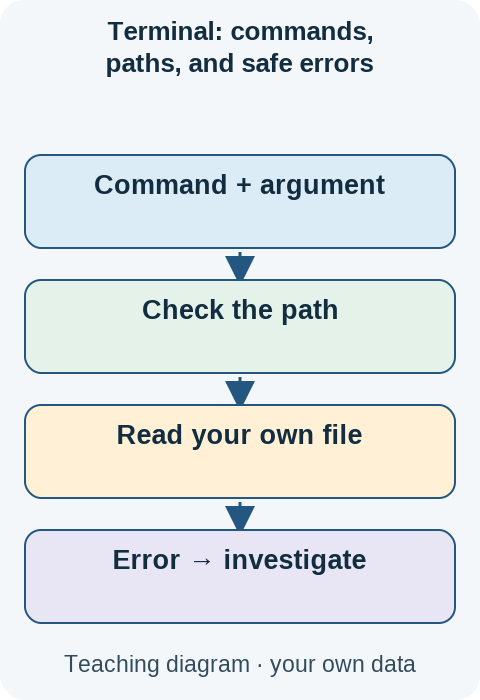
Original teaching diagram. Read from top to bottom; it explains the check sequence and does not depict a recorded interface.
Lesson 1. What Return actually starts
Terminal lets you send text arguments to a program and read its response. It is another interface to the same files. A shell interprets the line, finds the command, and launches a process. Modern macOS installations usually use zsh as the default shell, but users can customize the prompt. Do not type a $ or % shown at the start of somebody else’s example: it commonly represents the prompt rather than part of the command.
The built-in Terminal application is already installed. Open Spotlight with Command-Space, enter Terminal, and select Apple’s application. The title area identifies a window or tab. The main area contains output and a prompt. The cursor after the prompt is where you type. Enter pwd and press Return. This prints the working directory without moving files. Compare that location with the home folder you found in Finder.
A command contains a name and space-separated arguments. For example, ls -l note.txt uses ls to list objects, -l for details, and note.txt to select one object. An option needs a normal hyphen, not a typographical dash. Quotation marks keep a path containing spaces together as one argument. Understand a line before executing it. A request to use sudo involves additional privileges; none are needed here.
First mini exercise: run pwd, then ls. The second command lists objects in the current directory without opening their contents. Do not put a complete personal-directory listing into a shared report. Second mini exercise: run man ls. The installed manual viewer uses Space to move down and q to return to the prompt. This is ready-made local documentation, and its version may differ from an online page. A manual has not frozen simply because no new prompt is visible.
Lesson 2. Paths and quotation marks
An absolute path begins with / and does not depend on the working directory. A relative path starts with a name and is resolved from the directory reported by pwd. A dot means the current directory; two dots mean its parent. At the beginning of an unquoted path, the shell expands ~ to your user’s home folder. You can therefore use ~/AcademyLab/note.txt without knowing your account’s short name.
cd ~/AcademyLab
pwd
ls -l note.txt
cat note.txt
file note.txt
Enter one line at a time. cd changes the shell’s working directory, and successful changes normally produce no text. cat prints a file’s contents, so restrict it to your training note. file examines content characteristics to describe a format. Expect a text description such as ASCII text or UTF-8 Unicode text, depending on the actual characters. That description establishes neither authorship nor the safety of an unrelated file.
Before the main case, perform two preparations inside this folder. Read note.txt, then note-copy.txt, comparing their version lines. Next, run ls -l ./note.txt; the ./ prefix should identify the same object. The readiness gate is that you can explain all five commands, see AcademyLab in pwd, and recognize your text. If cd reports a missing directory, inspect the folder’s existence and exact name in Finder first. Continuing relative-path commands from the wrong location produces misleading results.
Lesson 3. An error is evidence to investigate
No such file or directory means that the named object or a path component was not found. Permission denied concerns an operation’s permission, while Operation not permitted may involve an additional macOS policy. One message does not identify every contributing mechanism. Record the command, target, working directory, and exact message before selecting a small clarifying check. Elevation cannot repair a misspelled filename.
Control-C asks a running command to stop. It differs from Command-C, which copies selected text. This module has no long-running operations. Do not stop unrelated processes or try an unfamiliar kill command. A successful program may produce no text because many tools only describe errors. Immediately after a command, echo $? prints its exit status: the shell substitutes the previous status and echo displays it. Zero usually means success as defined by that program. Check before running something else or you will read a different operation’s status.
Practice. Investigate a wrong filename without elevation
- Inspect
AcademyLabin Finder and ensure thatmissing-academy.txtdoes not exist. If the name is already used, choose another absent name consistently. - Change to
AcademyLabin Terminal and runcat missing-academy.txt. Record the message separately from your explanation. - Run
pwdandls -l note.txt. Correct only the target name, then runcat note.txt. Its contents should match Finder’s document. - Create a folder named
path practiceinsideAcademyLabusing Finder. Save a plain-textspace.txtthere containingPath check. Read it with the following command.
cat ~/AcademyLab/"path practice"/space.txtThe quotes enclose the component containing a space. The tilde remains outside so that the shell expands it. Quoting the entire path as "~/AcademyLab/..." prevents the usual tilde expansion and changes what must be found. Omitting quotes around path practice can pass multiple arguments to the program. The correct lesson is how to delimit arguments, not that Terminal cannot handle spaces.
Create terminal-record.txt with four columns: command, actual object, observed result, and next action. Include successful reading, the absent name, and a path containing a space. Label any status example as observed or illustrative. For cleanup, remove only path practice through Finder, retaining the original note and report. Close the Terminal tab after returning to the prompt. Apple’s Terminal guide documents the application. Check the exact installed arguments with man pwd, man ls, man cat, and man file. This prepares you for permissions, signatures, and logs: understand the command first, then interpret its output.
What your computer stores
Change the conditions and observe this training model. It runs in your browser and does not change your computer.
A filename is not the whole story. Try revealing its extension.
Choose conditions above to see an explanation of the result.
Independent exercise · Russian
Стажёру типографии в Туле передали архив замеров. В Finder каталог «Проверка цвета» открывается, а в терминале просмотр списка завершился ошибкой. Нужно дать следующей смене короткую инструкцию и сохранить исходные файлы.
Evidence
В карточке сессии команда pwd вернула /Users/lab/Смена. Вывод ls содержит строку «Проверка цвета». После ввода ls Проверка цвета оболочка передала ls два аргумента, и в ответе появились два сообщения «No such file or directory». В каталоге по описи лежит эталон.txt.
Assignment
Составьте протокол повторного чтения. Запишите исходный каталог, команду с одним аргументом для папки с пробелом и ожидаемое имя в выводе. Объясните, какой признак потребует проверить сам путь.
Compare your reasoning
Из указанного каталога подойдёт ls "Проверка цвета". В протоколе ожидается эталон.txt. Два отдельных имени в ошибке объясняются разделением аргументов пробелом. Если при верном pwd ошибка повторится уже с целым именем в кавычках, сверьте написание и наличие папки по её родительскому каталогу.
Personal practice environment
Check an excerpt, find matching lines and compute the SHA-256 of the original text. Temporary data expires after 30 minutes or when you close the environment.
Sign in