
Event logs: how to notice events and keep a useful history
Contents
- Lesson 1. An event and a record of that event
- Preparation. From a file to a verifiable observation
- Tool introduction. Your OS’s event viewer
- Method. Build a fact table before an explanation
- Lesson 2. Read a simple action history
- Lesson 3. Inspect your system’s log viewer
- Practice. Lesson 4. Test a hypothesis instead of fearing a message
- Lesson 5. Build your own timeline
- Final practice. A readiness folder for later courses
Notice Events and Keep a Useful History
Mira cannot see the latest plan line again. This time she saved it but opened the backup copy. How can that be distinguished from loss or someone changing the file? An action history helps. First meet the log viewer, then analyze six short records without terminal commands or complex search queries.
Lesson 1. An event and a record of that event
An event is something that happened: a program opened, a file was saved, a connection succeeded or a request was refused. A log contains records of events. A record is not the action itself: a program must decide what and when to record. Logs therefore rarely describe absolutely everything that occurred.
A useful record answers questions such as when, where, what action, which object and what result. Here the object is a file path. Lab/backup/plan.txt differs from Lab/plan.txt even though the main filename is identical.
A timeline orders events by time. It helps test sequence without automatically establishing causes. Nearby messages can belong to different programs. Clocks may differ and records may arrive late. All times in our training history use one clock; complex timing cases come later.
Predict: does a red Error label always mean an attack? No. It might describe an ordinary failed connection or application problem. Understand contents, source and context. Deleting a log merely to remove an alarming color destroys useful history rather than solving the underlying issue.
Preparation. From a file to a verifiable observation
Triage starts with a concrete question. Ask “why does the opened plan differ from the working version?” rather than “is everything secure?”. Earlier lessons gave Mira an original, dated copy and restored file. First identify record fields in a ready-made viewer, then read a short history and test one hypothesis using practice files.
Separate fact, something directly observed, hypothesis, a proposed explanation, and check, an action that distinguishes explanations. Label unknowns honestly: “no record”, “collection scope unknown”, “time approximate”. That is more useful than a confident unsupported conclusion. Record the date and time zone: 09:00 without either is hard to compare with another device.
A viewer reads OS and application messages. It does not automatically record every editor click or back up document contents. A record may contain time, source, identifier, level and text. Error is a message level, not an attack verdict. Do not delete records to clear errors or change collection just to match this exercise.
Tool introduction. Your OS’s event viewer
| OS | Access and interface | Mini-action 1 | Mini-action 2 |
|---|---|---|---|
| Windows | Start → Event Viewer; left navigation tree, central list, lower details | Windows Logs → Application: select an accessible record and locate date, source and ID | Double-click the same record; find General description and compare its time with the list |
| macOS | Application search → Console; devices on the left, messages and search above the list | Select your Mac and Start if streaming has not begun; read one accessible record | Search for that record’s process name, choose a suggested filter if offered, then clear it with the cross |
| Linux with GNOME | Applications → Logs if installed; categories and messages | Open a category and record, locating time and sender | Search for a word in the selected record, then remove the filter and compare the list |
These are included or standard applications rather than a web service. If GNOME Logs is absent, official access is through Apps for GNOME or your distribution store. Use Install on the official application page if supported, verify the package name/source and open the installed viewer. If the package is unavailable or installation needs an unknown device-owner password, follow the paper route. Lack of permission to read a log is not solved by guessing passwords.
Official materials describe the Windows Application log, Console messages, GNOME Logs and viewing limits. Microsoft’s article concerns SQL Server records, but we use only the shared Event Viewer panels. Do not install SQL Server.
Readiness gate: results/log-view-check.txt names the tool and category, explains three fields and states either “real record inspected” or “viewer unavailable”. Never publish actual message text containing names, paths, addresses or tokens. Record a redacted description such as “practice application reported an opening error”. For unfamiliar content, record a question instead of diagnosing infection.
Method. Build a fact table before an explanation
Use your familiar editor: create plain text and save Lab/results/timeline.txt. First mini-action: transcribe one fictional history line below with time, action and path. Second: add “Source: author-prepared manual history”, then close and reopen. Readiness: the source label remains and the history is not described as a real system log.
For the main case, create three columns: Observation, Possible explanation, Next check. Keep them separate. A missing latest line is an observation; opening an old copy is a hypothesis; comparing the two practice paths is a check. After separating these, read Mira’s history. Nearby timestamps help order events but do not alone prove causation.
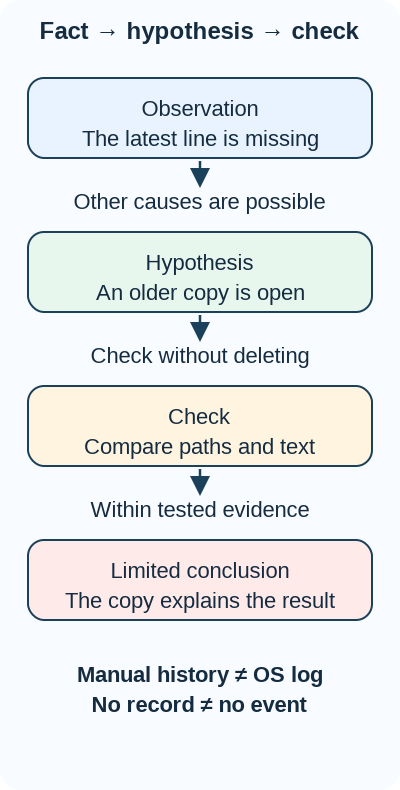
A history helps choose a check. Conclusions must stay within the evidence actually tested.
Lesson 2. Read a simple action history
The original history below is manually prepared. It does not claim that your operating system records every editor click. OPEN means opening, SAVE means saving, COPY means copying and QUESTION identifies Mira’s question.
Read the lines in order. Before the explanation, identify which folder Mira opens at 09:07 and which text version should be present there. Draw two file rectangles and update their labels after each line. This creates a small event model without programming or requiring a live monitoring system.
Fictional practice history, manually prepared:
09:00 OPEN Lab/plan.txt
09:02 SAVE Lab/plan.txt text="LAB ONLY + Completed: lesson one"
09:03 COPY Lab/plan.txt -> Lab/backup/plan.txt
09:05 SAVE Lab/plan.txt text="LAB ONLY + Completed: lesson two"
09:07 OPEN Lab/backup/plan.txt
09:08 QUESTION: why is lesson two missing?
Lesson 3. Inspect your system’s log viewer
At 09:02 the original contains lesson one. At 09:03 the copy receives that text. At 09:05 only the original plan.txt changes to lesson two. At 09:07 Mira opens backup/plan.txt, a different copy. Choosing the older file explains the missing line. The supplied history does not support an attack claim.
The history also has limits. It was written manually and does not guarantee that no other action happened between entries. A careful conclusion is that the supplied sequence explains the observation through an older copy. To confirm the present state, open both practice copies and compare contents.
Use the analyst’s habit: fact, hypothesis, check. The fact is opening backup. The hypothesis is that its copy is older. The check is comparing both practice files. A statement about stolen data requires different evidence that is absent here.
Operational workflow
Your OS viewer was prepared before the case. Use log-view-check.txt to compare time, source and description for one record. If no accessible records are available, document the limit and continue with the supplied manual history. No enterprise event-collection system is required.
Record the source category and meaning only. Actual logs may contain names, addresses and paths; do not publish them. Replace identifiers in your report with My computer and Practice program. Understanding every technical field on your first visit is unnecessary.
Practice. Lesson 4. Test a hypothesis instead of fearing a message
Create a separate history.txt inside Lab. Write five practice actions with approximate times: opening plan.txt, changing a fictional line, saving, copying and opening the copy. Label the history as manually written. Do not present it as an operating-system log.
Close the editor, reopen the relevant files and test one conclusion. Consider a missing latest line. Give three explanations: the edit was not saved, a different copy was opened or the file changed later. For each, state a safe next check. You do not need to prove every explanation; identify the evidence that distinguishes them.
Organizations use collection and search systems for large event volumes. You will encounter SIEM, centralized work with security events. It is not a magical truth detector: results depend on sources delivering records. Today’s deliverable is a clear timeline rather than installing an enterprise service.
Lesson 5. Build your own timeline
Distinguish events from records and manual training history from system logs. Identify the backup folder and test the explanation by comparing copies. Create history.txt without real secrets and give three hypotheses with different checks.
Hint: real messages seem too technical
Find only the time, source and a recognizable action. If the description is unfamiliar, write a question rather than an infection claim. The complete exercise can use the supplied history without administrator privileges or changing system settings.Common mistakes are treating every error as an attack, deleting records, confusing original and copy, and claiming no event occurred because a log is empty. Address each with a verification action. This foundation lets you gradually progress from ordinary activities to specialized security logs while preserving the distinction between facts and explanations.
Primary sources
Final practice. A readiness folder for later courses
Add three columns to results/timeline.txt: observation, hypothesis and check. Use your own practice plan and copy; verify the old-version conclusion by reopening. Keep this report and log-view-check.txt. If you inspected an actual log, preserve only a redacted description of the selected record and never upload a raw export to the course. Clear only the viewer’s search filter and close it, leaving system records intact.
Create readiness.txt linking these shortened practice paths:
- files-check.txt — locating saved text and an independent copy;
- browser-check.txt — reading a domain and finding a saved page;
- update-check.txt — separating status inspection from an actual update;
- access-check.txt — explaining login and permission without secrets;
- backup-check.txt — opening a restored version and naming its storage;
- vm-passport.txt — distinguishing host/guest and listing VM connections;
- timeline.txt — separating observation from explanation and checking a conclusion.
These are learning artifacts, not a diploma or a complete security assessment. Mark each as “performed”, “paper model” or “equipment/access needed”. Do not hide an unperformed VM installation behind “ready”.
Bridge to a specialty: SOC begins with event sources and triage; incident response begins with preserving data and safe actions; digital forensics examines artifact provenance. Before offensive specialties, complete OS and networking foundations and prepare a separate authorized laboratory. You can now state a question, present a fact, choose a check and describe the limits of your conclusion.
Now choose SOC analysis, incident response or digital forensics, comparing the course’s entry skills with readiness.txt.
An event is not yet an incident
Change the conditions and observe this training model. It runs in your browser and does not change your computer.
Select the events you want to include in your explanation.
Choose conditions above to see an explanation of the result.
Independent exercise · Russian
Дежурный диспетчер в учебной транспортной компании сообщает, что принтер перестал принимать заявки «около половины третьего». В интерфейсе печати уже пустая очередь. Для передачи второй линии нужны время сбоя и наблюдение, которое можно подтвердить.
Evidence
Все часы показывают московское время. Журнал очереди: 14:26:10 задание 71 принято; 14:26:12 задание 71 передано устройству; 14:28:03 задание 72 принято; 14:28:33 ожидание ответа устройства истекло. Журнал службы: 14:29:00 служба остановлена; 14:30:20 служба запущена. Данных с самого принтера пока нет.
Assignment
Соберите хронологию для заявки. Укажите последний засвидетельствованный успешный шаг, первый сбой, одну версию причины и один источник, которым её можно проверить.
Compare your reasoning
Последний подтверждённый успех передачи — задание 71 в 14:26:12. Первый зафиксированный сбой — истечение ожидания в 14:28:33. Остановка службы произошла позже. Даже для задания 71 передача устройству ещё не доказывает выход бумаги. Версию о потере связи проверит журнал доступности устройства за минуты вокруг сбоя.
Personal practice environment
Check an excerpt, find matching lines and compute the SHA-256 of the original text. Temporary data expires after 30 minutes or when you close the environment.
Sign in