
Passwords and two-factor authentication: a second login step
Contents
- Lesson 1. How a service recognizes you
- Preparation. What you will protect yourself
- Tool introduction. KeePassXC with fictional accounts
- Tools. Screen locking and a second login step
- Lesson 2. Login and permission are different decisions
- Lesson 3. Why a second independent step helps
- Practice. Lesson 4. Lock the screen and examine recovery
- Lesson 5. Practice with fictional accounts
- Your deliverable and the next step
Accounts, Passwords and a Second Login Step
Mira uses a shared computer, closes her notes tab and leaves. The next person opens the site and still sees her notes. Why? Would a second password ensure that she reads only her own documents? Separate login from permission and practice without registering a real account or collecting actual credentials.
Lesson 1. How a service recognizes you
An account links a user to settings, data and service permissions. A username helps select that record. A password is a secret used to confirm login. A name is usually not secret; a password must not appear in your practice report. Your computer account and a website account may be separate records.
Login checks whether somebody may act under the selected record. Afterward a site commonly retains a session, a state that avoids asking for a password on every page. We do not need cookie internals yet. Understand that closing a tab does not always end the session. A site’s Log out function specifically ends or revokes access according to its design.
Permission answers a different question: what may this account do? Mira may read her note but not Tutor’s private note. Successful login does not make her a teacher. An administrator is a role with additional powers; ordinary lesson reading does not require it.
Predict: does Mira’s long password automatically prevent the site from giving her Tutor’s document? No. The password protects login. The service must separately check the requested document’s permissions. Both decisions are necessary.
Preparation. What you will protect yourself
Continue Mira’s case: Lab contains a fictional plan, while access to a personal device and online services is separate. Authentication verifies a login under an account; authorization checks permission for an action. A session keeps access active after login; closing a tab may not end it. Neither MFA nor a new password grants permission to another person’s document.
First try a practice password manager and screen locking, then create an access map. Actual passwords, MFA setup QR codes, secret keys and recovery codes must stay out of Lab, screenshots and submitted answers. A QR code may contain a setup secret rather than ordinary public information. Never publish it just because it resembles an image. Do not send a one-time code to someone claiming to be support.
Tool introduction. KeePassXC with fictional accounts
A password manager retains different secrets for different services. KeePassXC stores entries in an encrypted .kdbx database file, opened with a master password. It is a ready-made free application rather than a homemade script. Download and install from its official page, selecting Windows, macOS or Linux. Run the official Windows MSI wizard; on Mac open the DMG and copy the application into Applications; on Linux use its indicated official package or distribution store. Check OS compatibility and avoid disabling protection to run an incompatible installer. Getting Started illustrates the interface and fields.
First mini-action: launch the program → Create new database. Name it Academy practice and describe it as Fictional records only. Keep the proposed encryption settings. Choose a separate long practice passphrase you can repeat, enter it in both master-password fields and never reuse your actual email password. Save as Lab/practice.kdbx. If you forget this practice phrase, discard this purely fictional database and create another; a lost master password has no normal reset process.
In the main window, groups are on the left, entries in the centre, and search and menus above. Second mini-action: Entries → Add new entry. Use the title Mira practice, username mira-example, URL https://example.com and note No real account. Open the password generator with the dice icon, generate a random practice secret, confirm the entry and save. Do not register this account on example.com. Use Database → Lock Database, then reopen it with your practice master password.
Manager readiness gate: the entry remains after reopening; you distinguish the database’s master password from an entry password and keep secrets out of results. Your report records only the database name and successful verification. A locked-database message asks you to unlock it. A file-writing error may indicate a wrong location or permissions. Check Lab rather than running everything as administrator. If installation is unavailable, draw the fields on paper and explicitly state that the application check was not performed.
Tools. Screen locking and a second login step
Screen locking is included in your OS. It protects the current device session until normal sign-in. Mini-action 1: save the practice file, confirm you remember your usual unlock method and locate Windows Win+L, macOS Apple → Lock Screen or the GNOME system menu’s lock. Mini-action 2: lock, return normally and verify the saved file. Apple and GNOME document the behaviour. Readiness: you can return and understand that locking is not website logout.
For practical MFA inspection, use only an existing account you own, such as Yandex ID. A new account and paid subscription are unnecessary. Official access begins with login-method instructions and Yandex ID Key setup. The application name can change; reach its store through the official help link. Mini-action 1: sign in through your familiar trusted route, open Security and inspect the current Login method without changing it. Mini-action 2: find Recovery methods and check whether you can access the linked phone or email, recording only “available/unavailable”.
MFA readiness: identify how login is confirmed and how you could recover access after losing the phone. Only then, if you choose to enable protection on your own account, follow the current wizard through Login method → Password + One-time password → Start setup. It may request phone confirmation and adding the account to the application. Follow the official steps without saving setup secrets in Lab; confirm one repeat login that you started yourself. If recovery is unavailable or the wizard differs, stop after inspection. Two passwords are not two independent factors: both rely on knowing a secret.
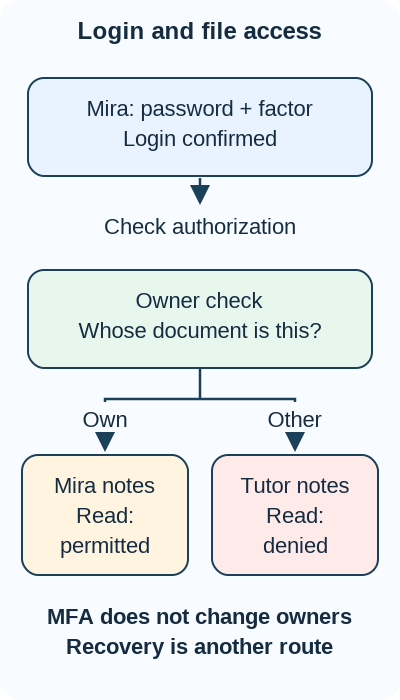
Login confirms an account; document permission is separate; recovery is another route to access.
Lesson 2. Login and permission are different decisions
Read the fictional account card. DENIED means an expected refusal; a real site might display No access instead.
Close pages containing real personal information before practice. On paper, draw Mira and Tutor, one document for each and a public page. Add two checks: was login confirmed, and does this account have permission for this document? Use no real passwords, email addresses or codes.
Predict three outcomes before reading the explanation: a guest reads the public lesson; logged-in Mira opens her own note; logged-in Mira requests Tutor’s private note. Mark allow or deny beside each request.
Fictional lesson service:
Account Mira: read and change Mira notes
Account Tutor: read and change Tutor notes
Public page: everyone can read
Mira request: read Tutor private notes -> DENIED
Second step: confirm a requested login on registered device
Recovery: identity checked; old access reviewed; owner notified
Lesson 3. Why a second independent step helps
The public lesson permits guests, so it requires no login. Mira’s personal note needs her confirmed account. Tutor’s private note remains unavailable to Mira despite successful login. Permission checking is authorization; login verification is authentication. These names describe the example rather than replacing an explanation.
On the shared machine, Mira’s active session may let the next person act in her context. A strong password cannot help when no password is requested. Locking a personal device is useful; a shared device also requires the site’s intended logout procedure.
A different password for every service reduces the consequences of one exposed password. A long, unpredictable phrase is preferable to a short familiar combination. A password manager helps retain different secrets, but its own access also needs protection. The practice database contains only fictional records; real secrets stay outside the learning report.
Operational workflow
MFA means using multiple independent ways to confirm login. A password checks something you know; confirmation on a registered device can check something you possess. Two passwords remain the same kind of factor: both are secrets someone could learn.
A second step reduces login risk from one stolen password but does not make every request trustworthy. Do not approve an unexpected login notification if you did not start the login. A confirmation code is also secret. Modern access keys called passkeys can bind confirmation to the intended site; their internals come later. For now, distinguish a second login step from extra permission to read another person’s documents.
Recovery is another access path. If a site restores access using only an easily guessed answer, it may bypass a strong normal login. A useful recovery process checks ownership, notifies the owner and reviews old sessions. Losing a phone should not require publishing codes in a shared chat. Locate the official recovery instructions for your own services beforehand without experimenting on someone else’s account.
Practice. Lesson 4. Lock the screen and examine recovery
Save your practice plan.txt and try locking your own computer. On Windows, press the Windows-logo key and L together. On macOS, choose Apple menu → Lock Screen. On GNOME, use the system menu’s lock control if available. First confirm that you know your normal way to sign back in; on a shared training device follow the owner’s instructions. After returning, verify that your file remains saved.
On paper, evaluate five requests: a guest reads public content; Mira reads her own note; Mira reads Tutor’s; Mira changes her own; Tutor changes Mira’s. Give the expected result and reason. Add a recovery question: which old access should be reviewed after restoring the account? No real MFA setting changes are required.
Lesson 5. Practice with fictional accounts
Distinguish computer and site accounts, login and permission. The card denies both cross-owner note requests. Explain why a closed tab may not mean logout and why two passwords are not independent factors.
Hint: locking and logout seem the same
Screen locking protects access to the current machine. Site logout changes that site’s session. Closing a window may do neither. Treat these actions separately and check service-specific behavior using official instructions.Common mistakes include adding passwords instead of document authorization, approving a login you never started and storing a real password in practice notes. Your report should contain fictional names and explanations only. You should also explain which protection addresses which situation rather than calling every action two-factor authentication.
Primary sources
Your deliverable and the next step
Create Lab/results/access-check.txt. Record the practice database name, reopening result, five case permissions and MFA status: “own account inspected”, “enabled and repeat login checked” or “paper example only”. Include no passwords, addresses, QR codes or recovery codes. Add one sentence distinguishing device locking from website logout.
Save and close KeePassXC, locking its database. Use the service’s Log out when finished. Keep practice.kdbx until the course ends; before deleting it, check that it contains no real entries. Do not disable existing MFA to clean up a training folder. Losing a manager’s master password and losing a phone require different recovery preparations.
Predict: should you approve an unexpected login prompt?
Identify whether you initiated the login and how you could independently reach account settings through your familiar route. Receiving a notification does not establish the sender's trustworthiness.Bridge to a specialty: IAM develops roles and access lifecycle; web/API security checks permission for each object; Active Directory introduces users and groups. Your current readiness is an understandable access matrix and the ability to store a practice entry, confirm your own login and recognize recovery as a separate access route.
Develop users and groups through Active Directory foundations; later study service permissions in API security.
Account identity and access rights
Change the conditions and observe this training model. It runs in your browser and does not change your computer.
Choose conditions above to see an explanation of the result.
Independent exercise · Russian
В районном музее сотрудница меняет телефон в последний рабочий день перед выставкой. В кабинете бронирования залов второй шаг входа выполняет приложение на старом телефоне. Компьютер в кассе делят сотрудники двух смен.
Evidence
Старый телефон доступен до 18:00. В кабинете предусмотрены привязка нового приложения, отключение прежнего и выпуск одноразовых резервных кодов. В 17:05 на кассовом компьютере открыт кабинет. Системная блокировка экрана включается после 15 минут бездействия.
Assignment
Составьте порядок передачи смены и замены телефона. Включите пробный вход, хранение резервных кодов и шаг для защиты кассового компьютера. Для сдачи достаточно названий действий и наблюдаемых результатов.
Compare your reasoning
Сначала подключают новый фактор и проверяют вход с ним в отдельном окне без действующей сессии, пока старый способ доступен. Затем отключают прежний фактор и сохраняют резервные коды в доступном владельцу защищённом месте отдельно от телефона. Перед сменой закрывают сеанс кабинета и блокируют компьютер. В отчёте виден результат повторного входа без пароля, кодов или QR-изображения в тексте отчёта.
Personal practice environment
Check an excerpt, find matching lines and compute the SHA-256 of the original text. Temporary data expires after 30 minutes or when you close the environment.
Sign in