
How a browser works: the Internet and safe boundaries
Contents
- Lesson 1. A browser is a program; a site uses another computer
- Before the case. Open a browser and read its interface
- Before the case. Downloading and locating the result
- Lesson 2. Addresses, Wi-Fi and the path to a page
- Lesson 3. Connection does not grant every permission
- Practice. Lesson 4. Build a network on paper
- Lesson 5. Check your understanding and common mistakes
- Your deliverable and the next step
Browsers, the Internet and Safe Boundaries
Mira opens a browser, sees a search box and thinks: this is the Internet. Her laptop connects to a guest Wi-Fi network, but private notes on a website still require login. Why can a connection work without granting access to those notes? Predict an answer before following the page’s path, without commands or network equipment.
Lesson 1. A browser is a program; a site uses another computer
A browser is a program for opening web pages, such as Edge, Safari or Firefox. A website provides pages and related functions across a network. A server is a computer or program that responds to requests. A website’s server is usually somewhere other than your laptop. The client here is the browser requesting a page.
A network connects devices so they can exchange data. The Internet joins many networks. Wi-Fi is a wireless way to connect to a nearby network. Wi-Fi and Internet access are therefore different: communication with a local device may work while the Internet connection is unavailable.
A search engine helps find pages, while the browser displays them. Many browsers use the same bar for both searching words and opening addresses. These remain different functions. A site address tells the browser where to connect. Read the full site name: a similar name is not the same service. We are not studying port numbers yet; first distinguish the program, network and remote resource.
Predict: if Internet access disappears, does your saved plan.txt stop existing? No. It is a file, not a page you must request again from a server. A document available only through a cloud service may behave differently, so identify how it is stored.
Before the case. Open a browser and read its interface
A browser displays web pages; it does not represent the entire computer’s Internet connection. Use already installed Edge on Windows, Safari on macOS or Firefox on Linux. Reinstallation is unnecessary. If your personal computer has no browser, use the official Firefox download. Select your OS, wait for the installer to finish downloading, locate it in Downloads and check the publisher and system instructions. The Windows wizard offers Next and Install; a Mac disk image opens and the application is copied to Applications; Linux users should prefer the official distribution store. If the installer reports an unsupported system, stop and check OS support without disabling protection. This is an optional alternative, not a required exercise.
Find tabs, the address bar and the browser menu above the page. A tab is a separate page within a window. Back returns to the previous page; Reload requests the page again. Reloading a page differs from updating the browser program. The address bar often also searches words: search results are a search-engine page, not necessarily the official site you intended. A button or input field inside a web page belongs to that site; the upper address bar belongs to the browser.
Mini-action 1: open a tab with the plus button, type https://example.com into the address bar and press Enter. Record the domain example.com and the page heading. This is an IANA demonstration domain; registration is unnecessary. Mini-action 2: open the same address in a second tab, switch between them and close only the second tab using its cross. The first page should remain. If you see a network error, record its meaning and use the fictional cards below. The error is not a reason to install an Internet booster.
Browser readiness gate: name the program, locate its address bar, distinguish the domain from page text and open a new tab again. Start the main case after this check. A lock or secure-connection indicator concerns data transport to the named domain; it does not establish the owner’s honesty. In https://example.com/page, https is the scheme, example.com is the domain and /page is the path. example.com.other.invalid identifies another domain. This is a fictional string, not an address to visit.
Before the case. Downloading and locating the result
Downloading transfers data from a network into a file on your device. Installation is a separate operation that enables a program to run. A downloaded document, an installer and an archive have different purposes. An archive packages several files; unpacking it is not a safety check. We save a known public page rather than unfamiliar attachments.
| Browser | Save the page | Locate the resulting object |
|---|---|---|
| Edge | Ctrl+S → Webpage, HTML only, if offered | Menu … → Downloads, or File Explorer |
| Firefox | Ctrl+S, or Command+S on Mac → Webpage, HTML only | Menu → Downloads → folder icon beside the item |
| Safari | File → Save As → page format or web archive | Downloads button if an item appears; find a manually saved file in Finder |
Labels vary by version and interface language. Mini-action 1: in the Save dialog, select Lab and the name example-page. Keep the format’s proposed extension. Mini-action 2: locate the resulting .html or .webarchive in the file manager and inspect Properties or Get Info for its size and location. Saving a complete page may also create a resource folder; this is expected. Saving does not install an application. Official instructions cover Firefox Downloads and Safari Save.
Download readiness: locate the file without Recent Items and explain its source and purpose. If saving is unavailable, record “not performed”; you can still complete the paper network case. A diagram must not be presented as a completed download.
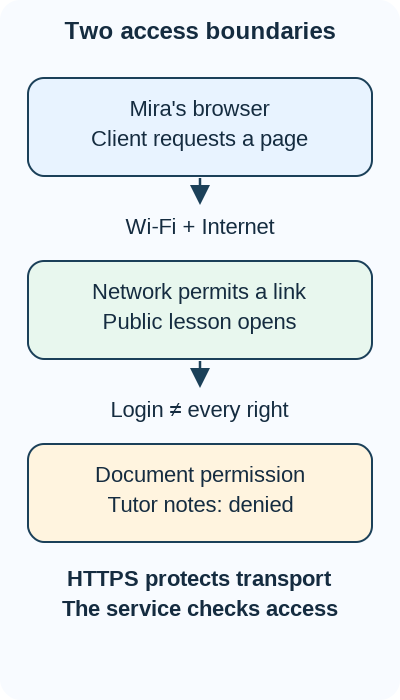
Two distinct checks: reaching a site through the network and granting an account access to its data.
Lesson 2. Addresses, Wi-Fi and the path to a page
Inspect your connection without changing it.
- On Windows, select the network icon beside the clock and inspect Wi-Fi details if you use a wireless connection. Find the connected indicator. A wired computer may not use Wi-Fi at all.
- On macOS, open Control Center in the top menu bar and its Wi-Fi section. See which network is marked connected.
- On Linux with GNOME, open the top-right system menu and its network section. Other desktops may place a similar icon in a bottom panel.
Do not publish your real home-network name; label it My network in your notes. Open a browser from the application menu. Enter https://example.com in the address bar and press Enter. This is IANA’s demonstration address. If your connection works, a simple example page appears. Otherwise record the missing connection and continue on paper. Do not install an Internet booster.
Read the fictional cards below:
Training cards:
Mira laptop -> guest Wi-Fi -> internet -> public lesson site
Tutor laptop -> staff network -> lesson site
Private backup folder: staff only
Guest Wi-Fi: internet allowed, private backup access denied
Site account: own notes only
Lesson 3. Connection does not grant every permission
Mira’s browser reaches the public lesson through a guest network. That connection is allowed. Joining the network does not make Mira a staff member or grant access to the tutor’s backup folder. Permission to connect and permission to access data are different decisions.
Mira’s account is a record connecting her to permissions and notes. Logging into it does not grant other users’ rights. A public page can be read without login, her own notes need account verification and somebody else’s private notes remain unavailable. Resources have different permission boundaries even when everybody can open a browser.
Later you will encounter segmentation, dividing a network into parts with communication rules. Guest and staff networks here have different permissions. Zero Trust means that being inside a familiar network should not automatically grant access to every resource. These terms describe boundaries and checks rather than a special browser button.
Operational workflow
Start by asking what must work. A guest needs the public lesson, a tutor needs teaching materials and backups need restricted storage. Then ask what must be denied. A guest should not open the staff backup folder, and one student should not read another’s private notes.
Draw an arrow for an allowed path and a crossed-out arrow for a denied path. Label each reason. Drawing only allowed paths makes it easy to forget boundary tests. Denying everything breaks the lesson page, which is also an unsuccessful design. Protection should preserve the necessary function while removing excess access.
A lock or secure-connection indicator concerns your connection to the named site. It does not promise that the site owner is honest. A lookalike address can have its own protected connection. For this lesson, inspect the address before entering data and use the demonstration page without any real login.
Practice. Lesson 4. Build a network on paper
Draw Mira’s laptop, the guest network, a public-lesson server and the private backup folder. Add required arrows and the folder denial. Then add Mira and Tutor site accounts with two private documents. State who can open each document.
Suppose Mira becomes a staff member. Does her access change merely because she connects to staff Wi-Fi? Explain which permissions need to be granted separately. You do not need to configure a real network. Compare your diagram with the cards and identify at least one positive and one negative example. A positive example verifies that a required function works; a negative example verifies that excess access is denied.
Lesson 5. Check your understanding and common mistakes
Distinguish browsers, search engines, networks, Wi-Fi and servers. Your diagram has a working permitted path and an understandable denial. Network connection is not automatic permission to read somebody else’s data.
Hint: the page did not open
Check that the address was entered into the browser’s upper address bar and matches https://example.com. If there is no connection, do not randomly change settings. Use the paper cards instead. The exercise checks concepts, not the availability of your home provider.Common mistakes include calling Wi-Fi the Internet, treating a search result as the intended site address, trusting every encrypted site and permitting everything to make one page work. Explain in one sentence which boundary each mistake hides.
Primary sources
Your deliverable and the next step
Create Lab/results/browser-check.txt. Record your browser, example.com domain, page-saving method and resulting extension. State “Wi-Fi/cable connected” separately from “page opened/did not open”. Connection inspection has two observations: read status in the network menu and identify the connection type. Leave the real home-network name out. Include one allowed and one denied path from the paper case. This separates real browser actions from a staff-network model.
Close practice tabs and retain the saved page and report until the course ends. If saving produced a resource folder, later remove it with its corresponding practice HTML rather than unrelated files. Do not clear all history and cookies for this exercise: doing so can sign you out of personal services.
Predict: does an encrypted connection grant Tutor-note access?
Name the boundary HTTPS checks and the boundary a service must check. Compare with the permission table without trying somebody else's Internet documents.Bridge to a specialty: networking foundations explain addresses, DNS and connections; OSINT teaches public-page reading and source checking; web security studies requests and authorization. Your entry skills are reading an address, locating a saved page and explaining why network connectivity does not grant data permissions.
The next practical step is networking and network security; for public-source work, continue to OSINT.
Why a service cannot be reached
Change the conditions and observe this training model. It runs in your browser and does not change your computer.
Choose conditions above to see an explanation of the result.
Independent exercise · Russian
В читальном зале библиотеки посетитель открывает расписание кружков на общем ноутбуке. После перерыва он видит скачанное расписание, хотя рядом со значком Wi-Fi стоит крестик. По этому признаку сотрудник решает, что связь вернулась.
Evidence
В 11:10 в истории загрузок появился файл raspisanie.pdf. В 11:25 он открыт из папки Загрузки. В 11:26 переход на ещё не посещённую страницу портала заканчивается сообщением браузера об отсутствии подключения. После подключения к гостевой сети портал открывается, а кабинет организатора запрашивает вход.
Assignment
Подпишите для сотрудников три наблюдения: какой объект открылся с диска, какое действие проверило связь с порталом и в какой момент потребовалась учётная запись. Приведите одну проверку, доступную посетителю без пароля.
Compare your reasoning
Копия расписания доступна с диска и после отключения. Отображение новой публичной страницы после подключения подтверждает достижимость портала в этот момент. Запрос входа касается отдельного кабинета. В памятке сотрудник может показать, где в окне отличить путь к локальному PDF от адреса сайта.
Personal practice environment
Check an excerpt, find matching lines and compute the SHA-256 of the original text. Temporary data expires after 30 minutes or when you close the environment.
Sign in