
Your computer, files and folders: first safety rules
Contents
- Lesson 1. Files, folders, programs and processes
- Before starting. Your device and a safe location
- Before the case. Editor, saving and process observation
- Lesson 2. Create plan.txt for the main case
- Lesson 3. What copying and deletion actually do
- Practice. Lesson 4. Test three simple protections
- Lesson 5. Mistakes, hints and your own checks
- Your deliverable and the next step
Did the note reach the disk?
Save plan.txt, close the editor and verify the file in the Lab folder. 34s · with narration and captions.
Video transcript
Your Computer, Files and First Safety Rules
Mira turns on her computer, writes tomorrow’s plan and closes the window. Later she cannot find the text. Was it lost, saved somewhere else or never saved at all? Choose a possibility before continuing. You need no commands, terminal or programming experience. We will create one harmless practice file and observe what actually happens.
Lesson 1. Files, folders, programs and processes
A file is saved data with a name: text, a picture, music or a document. A folder organizes files and other folders. The name plan.txt contains the main name plan and the ending .txt. That ending is an extension. It suggests an expected file type without checking whether the contents really have that format.
A program is a set of instructions the computer can execute. A text editor is a program for writing text. A process is a running instance of a program: opening the editor causes the computer to execute its instructions. Closing a program window does not necessarily delete a saved file. Conversely, writing words in an open window does not automatically create a separately saved document.
The operating system organizes the computer, programs and devices. This lesson uses Windows, macOS or Linux with a graphical interface: windows, menus and buttons. Choose the instructions for your own system, not all three. Ordinary practice does not require administrator privileges.
Predict before continuing: if you rename a photograph photo.txt, does it become plain text? No. You change its name and what a program might expect, but not the photograph’s actual bytes. Extensions are useful clues, not proof of format or safety.
Before starting. Your device and a safe location
Every foundation module is free. This is independent practice without a promise of employment or a diploma. Use your own device, fictional text and ready-made OS tools. If the computer belongs to an employer, move these exercises to a personal device instead of changing work settings. First identify your system: Windows uses Start → Settings → System → About; macOS uses Apple menu → About This Mac; GNOME uses Settings → System → About or About. Record the system name and version only, leaving out its serial number and owner name.
A file manager helps you locate saved data, inspect paths and manage copies. Windows File Explorer, macOS Finder and GNOME Files are included tools; no download is required. Find the location sidebar, current path, item list and action menu. A path is the sequence of folders leading to an object. The shortened path Lab/backup/plan.txt differs from Lab/plan.txt even though both filenames are identical. A full computer path can contain your real user name; do not publish it.
| OS | Access to the tool | Displaying the complete filename |
|---|---|---|
| Windows 11 | Win+E or Start → File Explorer → Documents | View → Show → File name extensions |
| macOS | Finder in the Dock → Documents | Finder → Settings → Advanced → Show all filename extensions |
| Linux with GNOME | Applications → Files → Documents | Extensions are part of the visible name; inspect the complete name in Properties |
First mini-action: open Documents, create Lab and enter it. Use New → Folder in Windows, File → New Folder in Finder or the context menu → New Folder in Files. Right-click displays the action menu; two-finger clicking commonly performs this action on a Mac trackpad. Second mini-action: create results inside Lab, return to the parent folder and open Lab again. Inspect its location with Properties or Get Info. If Documents already synchronizes with cloud storage, note that fact. A folder containing fictional practice text is suitable, but it is not isolated from synchronization. Do not change cloud configuration for this exercise.
File-manager readiness: locate Lab from a new window and display complete filenames. If you cannot, repeat the navigation without downloading a file-recovery product. Official help is available for File Explorer, Finder and GNOME Files.
Before the case. Editor, saving and process observation
An editor creates plain text. Use built-in Windows Notepad, macOS TextEdit or an installed GNOME Text Editor, found through application search. If your Linux system lacks an editor, use its official distribution store rather than an advertised download. In the editor window find the text area, File menu and Save command. Installation adds a program to the system; launching begins its operation; saving writes a document. These are three different actions.
Mini-action 1: create a document, type LAB ONLY and save it inside Lab as warmup.txt. In TextEdit, first choose Format → Make Plain Text. In the save dialog, select the folder, filename and plain-text format, then Save. Mini-action 2: close the saved document and open warmup.txt through the file manager. Some editors restore unsaved tabs; seeing text return in an old window is not a substitute for opening the file at a verified path. Editor readiness: your text appears when opening the actual Lab/warmup.txt. Then proceed to plan.txt in the main case.
A process viewer shows a running program rather than document contents. Use built-in Windows Task Manager (Ctrl+Shift+Esc → Processes), macOS Activity Monitor (application search → CPU) or GNOME System Monitor (Processes). First observation: find the editor by name. Second: exit it normally using Exit or Quit, inspect the list again, and open the saved file. Depending on your configuration, the editor may be grouped or remain in the background. Several browser processes are also normal. Avoid End Task and never stop an unfamiliar row. Apple explains the fields; GNOME explains processes. Observation readiness: distinguish a list of running applications from a list of files.
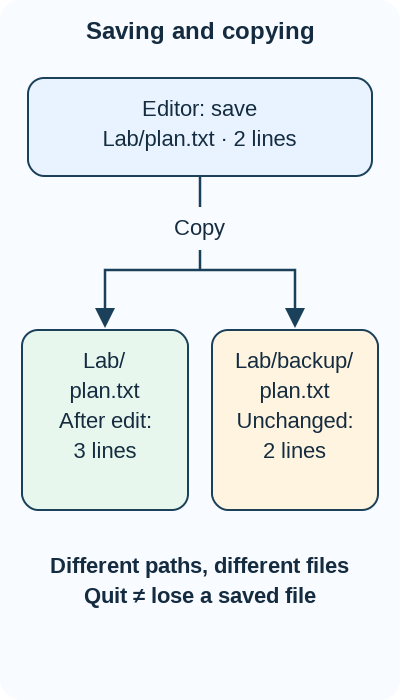
Saving changes the original; copying creates a second version; quitting the editor does not erase the saved document.
Lesson 2. Create plan.txt for the main case
Reuse the Lab folder created during preparation and create a plain-text plan.txt containing fictional practice lines only. One click normally selects an item; double-clicking opens it. Some systems use different settings, so watch whether a window opens instead of repeatedly clicking.
- On Windows, open Start, find Notepad, type LAB ONLY and choose File → Save as. Select Lab and use the name plan.txt.
- On macOS, find TextEdit using application search. Select Format → Make Plain Text, type LAB ONLY and choose File → Save. Save into Lab as plan.txt.
- On Linux with GNOME, open Text Editor, type LAB ONLY and choose Save as into Lab. Other Linux desktops may use different names. Use your system’s file manager and text editor rather than downloading an unfamiliar program.
The following structure is the expected result after the copying step:
Lab/plan.txt contains:
LAB ONLY
Task: read one lesson

Lab/backup/plan.txt contains:
LAB ONLY
Lesson 3. What copying and deletion actually do
Close the editor. Open Lab in the file manager and double-click plan.txt. Seeing LAB ONLY means the text was written to the file. If an empty window opens, inspect the filename and saved location. Do not create many additional copies immediately; first identify which document you have opened.
Create a backup folder inside Lab. Select plan.txt, choose Copy, open backup and choose Paste. You now have two independent files. Return to the original, add Task: read one lesson and save it. Open the copy in backup: it should retain the earlier text. That is expected copying behavior, not an editor fault.
Moving differs from copying: the object changes location and normally leaves its previous location. Deleting removes it from ordinary use. Many systems first place it in a bin, but recovery is not guaranteed. This exercise does not require deletion. First learn to locate and verify your own documents.
Operational workflow
How is this connected to security? Losing the plan affects availability, the ability to obtain the needed data. Someone changing the plan affects integrity, preservation of correct contents. Someone reading a private note affects confidentiality, access restricted to authorized people.
Choose protection for the actual problem. A copy helps if the original is accidentally changed or lost. It does not hide contents from somebody who can access the whole folder. Locking your screen helps when you leave a shared computer, but does not repair an accidentally published document. Checking saved contents helps catch mistakes, but is not an antivirus scan.
Write down which problem each action reduces. There is no need to protect a practice sentence like a banking secret. Learn the connection: loss needs recovery, changes need verification and a copy, and unwanted viewing needs access control. Later we will apply the same reasoning to accounts and online services rather than memorizing an unexplained list of products.
Practice. Lesson 4. Test three simple protections
Make another copy named plan-copy.txt inside Lab. Add a fictional Completed: lesson one line to the original, save it and open both files separately. Predict which file will contain the new line before opening them. Record the result in words without capturing screenshots of real personal files.
Explain four ideas to a friend: how a folder differs from a file, how a program differs from its running process, what saving does, and why a copy does not update automatically. You may draw a Lab rectangle with two files inside. Finally close the editor and find the file again through the file manager. That checks the skill rather than remembering the last open window.
Lesson 5. Mistakes, hints and your own checks
You have Lab, the original plan.txt and an independent copy. You can find the document after closing the program and explain why the two files contain different text. You distinguish availability, integrity and confidentiality using this one familiar example.
Hint: you cannot find the file
Inspect the editor’s save dialog to see the selected folder, but do not overwrite an unknown file. An automatically added extension can produce plan.txt.txt. Check the complete filename in file properties. This exercise contains no real secrets, so you can correct mistakes calmly.A common mistake is changing an extension to convert a format. Conversion uses the program’s export or save function, not renaming alone. Another mistake is treating a neighboring-folder copy as protection against complete device failure. It is useful for this experiment; a full backup needs separate storage and a recovery check.
Primary sources
Your deliverable and the next step
Create files-check.txt in Lab/results. Record the two shortened plan.txt paths, their line counts and comparison time. Mark warmup.txt as editor training and plan.txt as the main case. Keep the plan and copy. Delete only warmup.txt after checking its contents, without emptying the computer’s whole bin. If you accidentally moved the plan, use Undo immediately after your action or locate the destination instead of experimenting with recovery on real documents.
Predict first: will the copy change with the original?
Before reopening, name an action that could change the copy. Then inspect its path and contents. A pasted ordinary copy does not become automatically synchronized.Bridge to a specialty: Windows, macOS and Linux foundations continue with paths, owners and permissions. Digital forensics requires preserving originals and documenting each copy. Your readiness criterion is opening the plan after leaving the editor, displaying its extension and distinguishing working and saved versions. No terminal commands are needed yet.
Next choose your OS foundation: Windows, macOS or Linux.
What your computer stores
Change the conditions and observe this training model. It runs in your browser and does not change your computer.
A filename is not the whole story. Try revealing its extension.
Choose conditions above to see an explanation of the result.
Independent exercise · Russian
На складе в Перми готовят ведомость для вечерней смены. В списке недавних файлов дважды показано «Приёмка.txt». Сменщик распечатал лист, где для коробки под номером 16 нет места. Надо выяснить, откуда взялся этот лист.
Evidence
В папке Документы/Смена лежит Приёмка.txt, время изменения 17:20, последняя строка «Коробка 16 — стеллаж В». В Загрузках лежит Приёмка.txt, время 15:40, последняя строка «Коробка 15 — стеллаж Б». В окне печати указан путь Загрузки/Приёмка.txt.
Assignment
Составьте записку для сменщика. Укажите полный путь внутри рабочего каталога к каждому экземпляру, какой отправлять на печать и по какой строке это проверить. На учебных файлах проверьте свой способ после закрытия редактора.
Compare your reasoning
На печать ушёл экземпляр из Загрузок. Время помогает выбрать кандидата, а путь из окна печати связывает его с конкретным действием. Сменщик должен суметь открыть файл в Документы/Смена и до печати показать строку о стеллаже В.
Find the file and explain the result
Three ungraded decisions using File Explorer/Finder/Files and an editor. The observations are prepared practice examples, not recordings of your interface. Choose a next action and read the explanation for every option.
The new line is missing
Lab/backup/plan.txt is open and contains LAB ONLY. Lab/plan.txt received Task: lesson one after saving.
Identical names in different folders identify different files. Comparing them tests whether the copy stayed unchanged and the original retained the edit.
Deletion removes useful evidence before checking. Compare original and copy first, then decide which owned practice files are no longer needed.
Opening a different copy already offers a testable explanation. Reinstallation does not check the path and distracts from the simple comparison.
Review every option
- Open both full paths and compare their contents
Identical names in different folders identify different files. Comparing them tests whether the copy stayed unchanged and the original retained the edit.
- Delete backup so that only one version remains
Deletion removes useful evidence before checking. Compare original and copy first, then decide which owned practice files are no longer needed.
- Reinstall the editor
Opening a different copy already offers a testable explanation. Reinstallation does not check the path and distracts from the simple comparison.
The extension is now visible
With extensions hidden, the item appears as plan.txt. Enabling File name extensions reveals plan.txt.exe.
.txt is not the final extension here. The complete name ends in .exe; a name does not prove content or safety, and launching may be unwanted.
Renaming changes a name, not the content format or behaviour. It does not turn an executable into a practice text document.
Displaying extensions revealed a different expected purpose. The lesson uses your own plain text, so opening an unfamiliar file is unnecessary.
Review every option
- Double-click because .txt guarantees text
.txt is not the final extension here. The complete name ends in .exe; a name does not prove content or safety, and launching may be unwanted.
- Remove .exe and treat the file as converted
Renaming changes a name, not the content format or behaviour. It does not turn an executable into a practice text document.
- Do not run it; establish source and purpose
Displaying extensions revealed a different expected purpose. The lesson uses your own plain text, so opening an unfamiliar file is unnecessary.
The editor restored an unsaved tab
The editor displays the text again, but the file manager cannot locate Lab/plan.txt.
An editor may restore its working state. This is not yet a separate file at the intended path or an independent backup.
Select Lab in the save dialog, use plan.txt and plain text. Reopening through the file manager checks a disk file instead of the old window's remembered state.
The process list shows a running application, not saved contents. Forced termination can lose unsaved work; ordinary saving and reopening verify the required result.
Review every option
- Treat the restored tab as a backup
An editor may restore its working state. This is not yet a separate file at the intended path or an independent backup.
- Save with an explicit folder and name, close and reopen from Lab
Select Lab in the save dialog, use plan.txt and plain text. Reopening through the file manager checks a disk file instead of the old window's remembered state.
- Find the editor process and force it to stop
The process list shows a running application, not saved contents. Forced termination can lose unsaved work; ordinary saving and reopening verify the required result.
Personal practice environment
Check an excerpt, find matching lines and compute the SHA-256 of the original text. Temporary data expires after 30 minutes or when you close the environment.
Sign in