
Program updates and security: bugs and vulnerabilities
Contents
- Lesson 1. Why a familiar program can contain a bug
- Preparation. Privileges, installation and official channels
- Tool introduction. The native update window
- Tool introduction. Built-in protection and Russian products
- Lesson 2. Find the program and inspect updates
- Lesson 3. A fix must preserve useful behavior
- Practice. Lesson 4. Build a simple change card
- Lesson 5. Hints and outcome checks
- Practice on your device. Complete the verification cycle
Programs, Bugs and Updates
Mira saves two practice-plan lines, but reopening the document shows only the first. She remembers pressing Save. Perhaps she made a mistake; perhaps the program did. How can both possibilities be tested without blaming someone or downloading a random computer-repair tool? Use a fictional editor to learn how to verify a change.
Lesson 1. Why a familiar program can contain a bug
Programs are made by people and can contain bugs: actual behavior differs from what the program should do. Some bugs are inconvenient. Others undermine security by allowing unwanted data access, forbidden actions or service interruption. Such an applicable weakness is a vulnerability. Not every bug is a vulnerability, and not every reported issue applies to your version.
A version identifies a state released by the program’s author. An update replaces part or all of the installed program with a newer release. It may fix errors, change behavior or add features. Newer alone does not explain which problem was fixed. Read the description and verify the relevant behavior.
A running process is separate from installed program files. An already open instance may continue using old code until restarted. After a change, verify the installed version and the behavior of a newly opened instance.
Predict: renaming plan.txt to plan-v 2.txt does not update the editor. It changes a document’s name rather than program instructions. Closing the editor does not necessarily fix a save bug either. Restarting and updating are different actions, and each should have a clear purpose.
Preparation. Privileges, installation and official channels
A standard user can write inside Lab, open pages and save documents. An administrator can change system settings and install some programs for all users. A privilege prompt is a separate boundary: entering a password or pressing Yes authorizes a change, not the file’s safety. Do not enter your computer password into a website imitating an OS dialog. Our case needs only a standard account. If an action unexpectedly requests administrator privileges, check what you launched and where it came from.
Downloading an installer retrieves a file; installation adds a program; an update replaces part of an installed program; restarting launches a process again. These actions are different. Windows .exe or .msi installers, Mac .dmg images and Linux packages are not training text documents. Open only the official installer you need after checking its source. Update store-installed software through its store and software obtained from a developer through its built-in updater or official instructions. No registry cleaner is needed.
Prepare Lab/plan.txt and a copy. Before updating, save documents, connect a laptop to power and inspect available disk space in Windows Settings → System → Storage, Mac General → Storage or Files disk properties. Important personal data needs a tested backup first; a later module teaches recovery. Avoid beginning a major OS upgrade at the end of a working day. Read “no updates available” together with the OS version and support period. An unsupported OS receiving no new packages is not evidence of protection.
Tool introduction. The native update window
This tool retrieves packages from the OS’s configured channel and is already installed. Its interface shows checking status, available packages and restart requirements. Microsoft documents Windows updates, Apple documents Software Update settings and Ubuntu explains Software Updater and security updates. Inspect the window before deciding what to change.
| OS | Mini-action 1 | Mini-action 2 |
|---|---|---|
| Windows 11 | Start → Settings → Windows Update → Check for updates | Open Update history and locate the latest entry’s date |
| macOS | Apple → System Settings → General → Software Update; wait for checking | Open Automatic Updates details and read the switches without changing them |
| Ubuntu Desktop | Application search → Software Updater; wait for checking | If a list appears, expand package details; otherwise read the final status |
Some settings automatically start downloading; that is normal for a configured native channel. Do not bypass an organization’s update policy. Linux is a family of systems rather than one interface. Astra Linux, ALT and other distributions require the official instructions for their own version. Readiness gate: results/update-check.txt identifies your OS, checking time, the meaning of its status and “restart required/not required/unknown”. Do not write “updated” if you only inspected a list.
Tool introduction. Built-in protection and Russian products
Windows Security shows device-protection status. Open Start → Windows Security → Virus & threat protection. Mini-action 1: inspect status and the last scan time. Mini-action 2: if Microsoft Defender is active, run Quick scan and wait for completion; if another antivirus is installed, first inspect its status. Avoid running a second antivirus simultaneously and do not exclude Lab from protection. Readiness: distinguish “no detections”, “scan did not complete” and “threat found”. The official guide explains scan scope. No detections does not prove the absence of every possible threat.
macOS has no equivalent mandatory Quick scan button: built-in Gatekeeper and XProtect work differently. For two small actions, open Privacy & Security and read available messages, then consult Apple’s safe app-opening instructions. Do not use Open Anyway for the exercise. Linux has no universal built-in antivirus window. Native updates and permissions remain part of protection. These are real differences between operating systems.
Russian information security tools, often abbreviated СЗИ in Russian, include more than antivirus. Here we inspect documentation; commercial installation is unnecessary:
| Vendor and tool | Purpose and access | Two small documentation actions |
|---|---|---|
| Kaspersky solutions for Windows | Endpoint protection; support portal | Select your product branch and version; find scanning and distinguish full from selective scans |
| Doctor Web: Dr.Web Security Space | Device protection; manuals | Locate Security Space for your OS; open its User’s Guide and update section |
| UserGate NGFW | Rules governing exchanges between networks; documentation portal | Select NGFW and record the version; open the firewall section and identify what a rule controls |
This is a reading exercise, not deployment of a home gateway. Catalogue readiness: distinguish protection of a file on a device from filtering network exchanges and name the product and manual version you inspected. A familiar vendor name does not establish certification of your installation. Requirements, licensing, compatibility, edition and any current certificate must be checked separately in a specialist course; this lesson makes no certification claim.
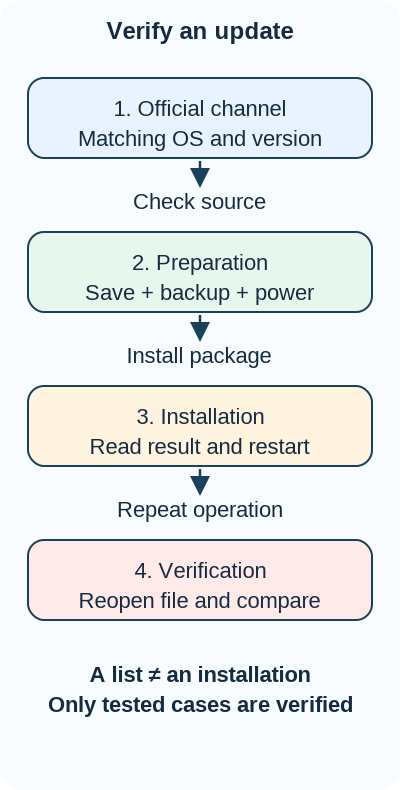
A Done message ends installation; the result is checked through version information and repeating a required operation.
Lesson 2. Find the program and inspect updates
Locate your system’s update information. Reading the window is sufficient; installing major changes is not required for this exercise.
- Windows 11: open Start → Settings → Windows Update. Inspect the current status and any displayed list. Record what the system says. Individual apps may update through their store or own menu.
- MacOS: Apple menu → System Settings → General → Software Update. This shows compatible system updates. App Store applications have a separate update section in that store.
- Ubuntu Desktop: find Software Updater in the application list. It provides graphical package checks. Astra Linux, ALT and other Linux systems may use different tools. Identify your distribution and its official instructions first. Do not copy an Internet command solely because it mentions Linux.
Now examine the fictional editor below. It is not installed on your computer; it is a reasoning card:
Fictional editor, not a real product:
Version A: Save writes only the first line
Version B: Save writes every line
Test document:
LAB ONLY
Task: read one lesson
Expected after reopening: both lines
Lesson 3. A fix must preserve useful behavior
Version A saves the first line only although it promises the whole document. Our positive test is to see both lines after saving and reopening. Version B passes. Also check that an existing one-line document still opens. Fixing one bug can otherwise break normal behavior.
Text in the current window is insufficient evidence of successful saving. Close the document and reopen the saved file: this tests recorded data rather than the editor’s current memory. If results differ, check that you opened the intended path and did not compare an old backup copy.
Real programs should use their official update channel: built-in updater, system store or author’s site. A browser advertisement saying your computer is infected is not the system’s update window. Compare where the message appears and which program displays it without following an unfamiliar download link.
Operational workflow
Make the change understandable by recording four things: the problem, your installed version, the expected correction and the verification method. Preserve required practice data first. If a restart is needed, save documents, close them and select a suitable time.
Afterward reopen the program. Locate its About section if available and inspect version details. Repeat the same small test with fictional text. Matching expected behavior is more useful than a completion message alone. If the new version does not resolve the problem, record the result and consult the author’s instructions rather than installing several unfamiliar repair tools.
In an organization, support staff may own software changes. Your useful contribution is a precise problem description, reproduction steps and version information. Knowing how to click Install does not establish authority to change a managed device. For this training card, careful observation and explanation are enough.
Practice. Lesson 4. Build a simple change card
Write the two training lines on paper. Model A retaining only the first and mark the actual result. Apply B’s rule and compare it with the expectation. Build an A-to-B change card containing the problem, action, positive test and old-document check.
Open your own plan.txt, add the fictional line Check: two lines, save, close and reopen it. This does not assert that your actual editor contains bug A; it teaches verification. Record the behavior you observed. If you prefer not to change the original, create an independent copy named update-test.txt first. State which file you tested so another person can repeat the check.
Lesson 5. Hints and outcome checks
Explain documents, installed programs and running processes separately. Your fictional bug has a repeatable before-and-after test. Check the necessary feature and previous normal behavior instead of relying only on an installation message.
Hint: no Software Update section appears
Search within system settings for update. Names depend on system and language. If support manages the device or restricts the page, record that condition rather than bypassing management or installing another updater.Common mistakes are confusing renaming with updating, treating visible text as proof of saving, comparing different copies and following random browser offers. Explain how to distinguish these situations with your practice file. Actual CVEs and automatic scanners come later, after this basic verification method is understood.
Primary sources
Practice on your device. Complete the verification cycle
If the native updater offers ordinary compatible updates on your owned device, documents are saved and important data has a tested backup, complete the cycle: read the list → choose Install or Update Now → wait for completion → restart normally if requested. Avoid interrupting power or changing the OS’s major release just for this lesson. If preparation is incomplete, record “inspected, installation deferred” and repeat after the backup module. That is an honest tool-introduction result.
After returning, reopen update settings, read status and open plan.txt. Check its saved lines and the old copy. Add the action, final status and post-restart file behaviour to results/update-check.txt. If installation fails, record the package name and a redacted error code, then consult official help for your OS. Do not delete system directories or install an advertised repair utility.
Keep update-check.txt and the A/B comparison. If you downloaded an installer only for inspection, retain it until checking source and version; uninstalling an application is unnecessary. Bridge to a specialty: vulnerability management needs inventory, applicable fixes and repeat verification. Endpoint protection needs product status, scan scope and licensing. Your first artifact is a small change history that separates “inspected”, “installed” and “verified behaviour”.
Before deeper device assessment, continue with Windows, macOS or Linux for your own system.
What your computer stores
Change the conditions and observe this training model. It runs in your browser and does not change your computer.
A filename is not the whole story. Try revealing its extension.
Choose conditions above to see an explanation of the result.
Independent exercise · Russian
В учебном центре стоят 12 компьютеров с условной программой для печати пропусков. При большом масштабе на части машин обрезается последняя цифра номера. Поддержка выпустила исправление, а утром предстоит печатать пропуска на две группы.
Evidence
Опись кабинета: 8 компьютеров с версией 4.6.1, ещё 4 с версией 4.6.2. В карточке выпуска из штатного центра обновлений указано: в 4.6.2 исправлена обрезка при масштабе 125 %. Учебный макет содержит номер 31048. На старой версии при этом масштабе в предварительном просмотре видно 3104.
Assignment
Напишите заявку администратору на пробное обновление одного компьютера. Задайте два условия сравнения до и после обновления, опишите ожидаемый результат печати и условие перехода к остальным машинам.
Compare your reasoning
Проверка повторяет печать того же макета при 125 % на том же принтере. После обновления в сведениях о программе должна появиться версия 4.6.2, а на бумаге — все пять цифр. При успешной пробе остаётся обновить семь компьютеров. Эта карточка выпуска подтверждает исправление печати; сведений об исправлении уязвимости в ней нет.
Personal practice environment
Check an excerpt, find matching lines and compute the SHA-256 of the original text. Temporary data expires after 30 minutes or when you close the environment.
Sign in