
Who runs the program: users, groups, and UAC
Irina saved her text without an approval prompt. Someone then told her: “You are an administrator, so every program runs with full rights.” We will examine that claim. A process needs rights for a particular operation on a particular object. Saving note.txt in your own folder does not establish the ability to modify a system file or read another user’s documents. Programs use their security context when requesting system operations.
Continue on the same Windows machine with AcademyLab from lesson one. Do not create accounts or change passwords, groups, or UAC. We will read your account’s state and practice responding to elevation. An ordinary Windows PowerShell window will host the built-in whoami command; the PowerShell language comes next. There is no need to install another shell or obtain another person’s administrator password.
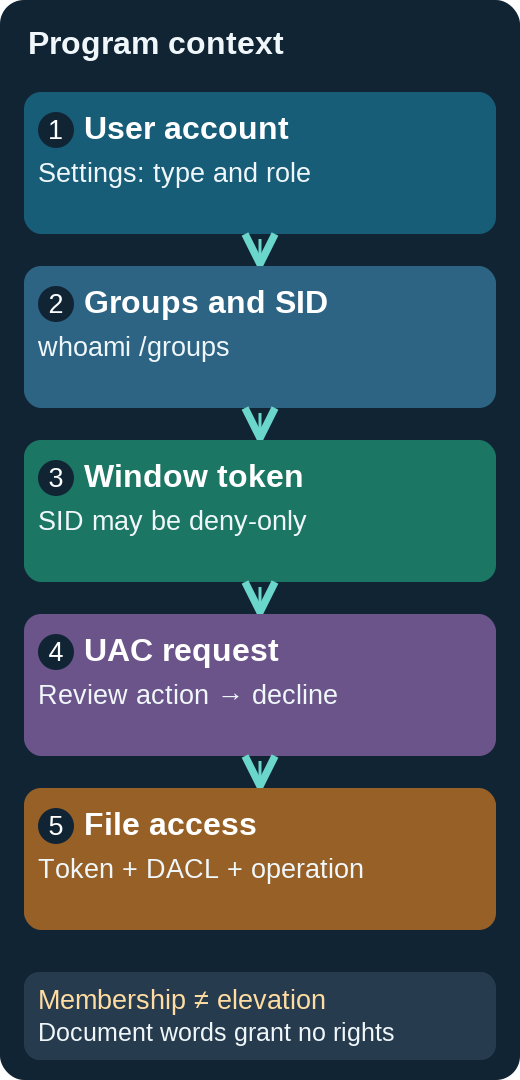
One account can start processes with different contexts. Membership and the elevation of a particular window are separate checks.
Lesson 1. Read your account in Settings
Open Start → Settings or press Windows + I. Select Accounts, then Your info. This screen reports sign-in information, not every process. A local account exists on the device; a Microsoft account connects sign-in to a cloud identity; a work/school account may belong to an organization. Organizational device enrollment is another state that cannot be inferred merely from identical email addresses.
Settings mini-practice A: read Your info, identify the account type from available fields, and record only the type and visible role. Do not copy your email or photo. Mini-practice B: return to Accounts and open Other users; wording varies. Examine what this screen allows you to add or change, without choosing Add or changing an account type. A missing entry here does not establish the absence of all system identities. If the section is managed, record that constraint. Gate: explain the information you read and point to where modifying an account would be a separate action.
A group assigns common rights to several accounts. A SID is a security identifier. An account can be renamed while the SID continues to identify it in access rules. Built-in groups have well-known SIDs; personal SIDs and organization names are unnecessary in public work. Microsoft: managing user accounts confirms the Other users route; our exercise only reads it. The replacement LAB-PC\learner illustrates “computer or domain → name”; it is not an account you need to create.
Lesson 2. Learn whoami and token reading
Find Windows PowerShell in Start and choose ordinary Open, without Run as administrator. A window opens with a prompt such as PS C:\Users\...>. The prompt means the shell is ready, and is not text to copy. Type only the command after it; Enter executes a line. If Command Prompt is open, whoami works there too, but later lessons require PowerShell. A terminal hosts a shell; the shell executes commands.
Mini-practice A: enter whoami. It reads the current process identity. Then enter whoami /?; /? displays help without changing the user. Mini-practice B: enter whoami /groups. /groups adds group entries and their attributes. Look for S-1-5-32-544, the built-in Administrators group, if present. Its name is localized. Group used for deny only means that this SID is not used to grant access in the current token, although it can participate in denials. If absent, do not add yourself to the group for the exercise.
whoami gate: identify the window, explain its result without publishing your name, and distinguish membership from using a SID to grant access. An unknown command requires checking spelling and the shell rather than elevating. Do not send complete output to chat; it may contain organization information. Microsoft: whoami and parameters.
An access token carries a process’s identity, groups, and privileges. Windows compares it with an object’s requested rights. The token is not a password or a judgment that a program is safe. Administrative membership can coexist with a limited token in an ordinary process. Under typical UAC settings, elevation asks a standard user for administrator credentials and an administrator for consent. Policy controls the particular prompt. Microsoft: how UAC works.
Lesson 3. Practice recognizing and declining UAC
UAC is a separate prompt before elevation. It may dim the screen and show the program, publisher, file origin, Yes/No, or credential fields. Compare it with the action you initiated. Publisher information is one provenance signal; a signature does not explain why the operation is needed. Familiar appearance alone is insufficient.
UAC mini-practice A: find the known built-in Windows PowerShell in Start, open its context menu, and choose Run as administrator. We only invoke the request and decline it. If a prompt appears, identify the program and publisher, then choose No or Cancel without entering a password. If a window opens immediately, close it without commands and record the absence of a prompt; the policy’s cause has not been established. Do not disable UAC to reproduce a screen.
Mini-practice B: open ordinary Notepad and read your note.txt. Elevation is normally unnecessary. Compare the reasons for reading your own document and requesting an administrative process. UAC gate: connect the prompt to an initiated action and identify how to decline. An unexpected prompt while reading a document calls for cancellation and checking what actually launched. Establish origin through a known vendor address or the environment’s support contact, rather than a link in a suspicious message.
Practice: an account card and access limits
- Close the remaining PowerShell window and open a new ordinary one. Repeat
whoami /groups. Addwhoami /user:/userreports the current account and its SID. Record only that a SID was observed and an anonymized account name. - Open
Files\note.txtin ordinary Notepad. Use Save as… to createReports\account-card.txt, keeping the original. Fill the form below with your own values. Saving in your own folder is expected to work, but does not test another user’s access. - Read one ACE and inheritance in the already learned Properties of
note.txt. Compare with groups observed in the current window. This explains visible evidence; “I proved every group’s access” exceeds the test. - Negative control: write the word
administratorinside the card and save it. Repeatwhoami /groups. Document text should not change the SID or group state. This is harmless own input, not an account-creation command.
Device: LAB-PC; observed at: <time and time zone>
Account type / visible role: <Settings observation>
Ordinary window: Windows PowerShell; no elevation requested
Administrators SID: <absent / enabled / deny-only / unreadable>
Own file: Files\note.txt; one visible ACE: <redacted>
Negative control: writing 'administrator' did not change identity
Limit: no test as another user; managed policy not inspected
Next check: <a particular field or question for the owner>
If saving is denied, return to the full path and folder permissions; do not use another person’s credentials. If Settings and group data seem contradictory, compare the same context. The visible account role and current-token attributes answer different questions. If organizational rules prohibit the terminal, submit the GUI work marked “token not examined.”
Produce an anonymized card, two limits, and a rule for unexpected UAC. Cleanup: close only windows you opened, retaining the card for the capstone. Groups and permissions were not modified, so system settings need no restoration. Next the same care becomes a precise method: name a folder, read only appropriate files, and save a report whose result can be checked.
Account identity and access rights
Change the conditions and observe this training model. It runs in your browser and does not change your computer.
The example has one ownership rule. Real operating-system access also depends on groups, permissions and ACLs: lists of access rules. This illustrates a principle rather than reproducing Linux or NTFS.
Choose conditions above to see an explanation of the result.
Independent exercise · Russian
В учебном классе на одной станции открыты два окна PowerShell. Техник относится к локальным администраторам и полагает, что разрешения запущенных им процессов одинаковы. Перед обычной сверкой учебных файлов нужно выбрать окно с достаточными правами.
Evidence
В обоих окнах whoami показывает LAB-PC\tech. В выводе whoami /groups для окна А группа администраторов помечена «только для запрета», уровень целостности средний. В окне Б эта группа включена, уровень высокий. Оба окна могут читать D:\Учебная\реестр.txt.
Assignment
Укажите, какое окно использовать для сверки и по каким двум полям вы отличили его токен. В карточке отделите имя вошедшей учётной записи от характеристик процесса.
Compare your reasoning
Окно А уже читает реестр со средним уровнем целостности. В его токене группа администраторов не даёт разрешений на основании разрешающей записи для этой группы. У окна Б высокий уровень и включённая группа администраторов. Имя LAB-PC\tech одно в обоих окнах, поэтому одного вывода whoami недостаточно, чтобы сравнить права процессов.
Personal practice environment
Check an excerpt, find matching lines and compute the SHA-256 of the original text. Temporary data expires after 30 minutes or when you close the environment.
Sign in