
Backup and restoration: recover the intended text version
Irina’s record says “backup exists: the application is installed.” That is not a result. She needs to know what was saved, which version is available, and whether it can be recovered elsewhere. You will change only a new training text and restore version 1, keeping working version 2 for comparison. No Windows reinstall or deletion of real documents is involved.
A copy on the same disk teaches recovery mechanics but does not survive loss of that disk. A connected backup device may be reachable by the same malicious process; storage and disconnecting after completion matter. Synchronization propagates changes, including unwanted ones, so a file appearing in a cloud folder does not establish a suitable version history. A working baseline records known state and a comparison method rather than permanent health.
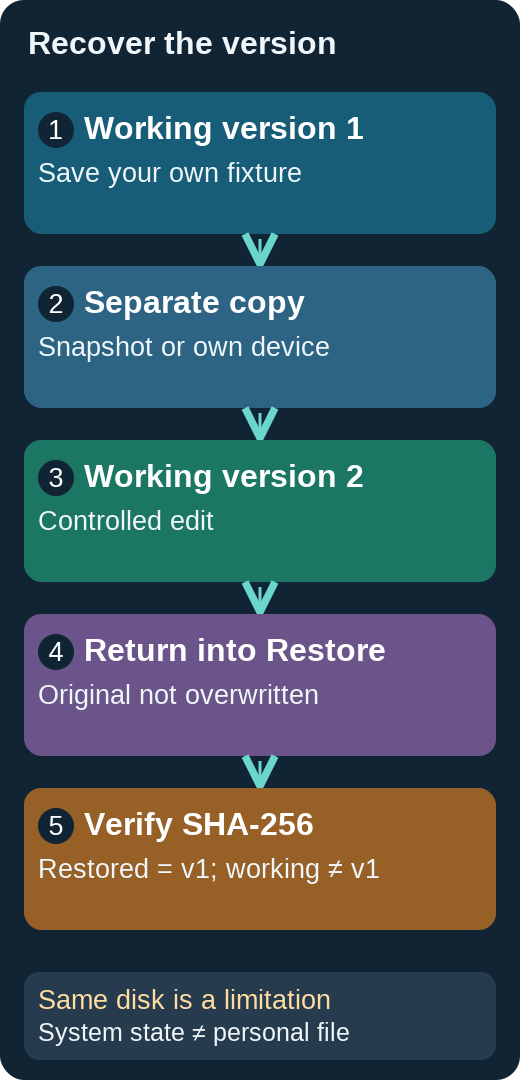
Restoration checks version, location, content, and limits. Copying within one folder does not validate independent storage.
Lesson 1. Prepare your folders and comparison tool
Open AcademyLab in familiar Explorer. Create Recovery, with Working and Snapshot inside. Restore from lesson one is the recovery destination. Core practice uses these own folders. If you have your own external device, create AcademyBackup there; the drive letter may differ from E:. Check identity and free space in Properties without formatting. Record actual location and independence from the source disk. A second virtual disk sharing the host’s physical disk does not prove resilience to losing the host.
Refresh Explorer: mini-practice A saves hash-a.txt in Working with Hash training A using Notepad, then closes and reopens it. Mini-practice B copies it as hash-b.txt, reads both, and verifies the original remains. Copy gate: distinguish copying from moving and identify both complete paths. Notepad and UTF-8 saving were learned earlier; do not use personal files as disposable input.
SHA-256 is a cryptographic content hash. The existing Get-FileHash reads a file and returns algorithm, hash, and path. -LiteralPath specifies the exact object and -Algorithm SHA256 explicitly selects the algorithm. Matching hashes practically confirm matching bytes in this comparison, not safety, owner, NTFS permissions, or origin. Renaming without editing content need not change a hash. Microsoft: Get-FileHash.
In ordinary PowerShell assign $lab as in module three. Hash mini-practice A: run these commands and compare complete Hash values, not just prefixes. The copy should match. Mini-practice B: change only hash-b.txt to Hash training B, save, and repeat. Hashes should now differ. If equal, examine paths, saving, and restored Notepad tabs. Hash gate: produce a match and controlled difference while explaining your own action.
Get-FileHash -LiteralPath (Join-Path $lab 'Recovery\Working\hash-a.txt') -Algorithm SHA256
Get-FileHash -LiteralPath (Join-Path $lab 'Recovery\Working\hash-b.txt') -Algorithm SHA256
Lesson 2. Separate files, system state, and version history
File History preserves user-file versions on an external drive or network location. System Restore returns certain system state, such as settings and installed components, rather than substituting for a personal-text backup. Recovery Drive does not include personal files as a complete file backup. Built-in tools address different tasks. Do not choose Reset this PC to recover note.txt. Microsoft: backup, restore, and recovery distinctions.
The optional File History branch requires your external drive or an allowed network location. Missing hardware does not prevent checking recovery mechanics in Snapshot, but must remain a report limitation. Find Control Panel in Start → System and Security → File History / Save backup copies of your files with File History. In an icon view choose File History directly. The screen shows destination and state; Turn on actually starts backup.
File History mini-practice A: read state and selected drive without changing them. If no destination exists, inspect Select drive and cancel. Mini-practice B: right-click Recovery in Explorer → Show more options if needed → Restore previous versions. Read Previous Versions or its empty list. No listed version may mean backup has not run or scope excludes the folder, not that the file cannot be copied. Gate: identify destination, scope, and how to inspect a specific preserved version. File History covers other personal folders too; in an own VM this is convenient, while organizational scope is set by its owner.
In a prepared own environment, select the drive, Turn on, and wait for a completed copy; Run now, when available, starts another cycle. The folder must be in a protected library/scope. For our Documents files, verify a version actually appears rather than assuming based on folder name. Cloud placeholders without local bytes need a separate content-availability check. The meaningful observation is a readable preserved version. Microsoft: File History setup and restoration.
Lesson 3. Choose restoration without overwriting the original
In Previous Versions select the intended date. Open → Open in File History previews content. Restore can replace the current object. For practice, expand its arrow and choose Restore to… with a separate Restore folder. Do not accept replacement when the objective is comparing versions. Distinguish backup time, restoration time, and later edits.
The manual branch achieves the same file-content demonstration by copying Snapshot into Restore with an existing OS action. It is not a homemade backup application. Read recovered text and compare hashes. A destination may provide different inherited permissions; matching content does not establish the same complete security descriptor. Important configurations also need ACL, metadata, and application-recovery checks. Here the subject is one own text.
Practice: version 1 versus version 2
- Create
Recovery\Working\restore-demo.txtin Notepad with these lines. Save, close, and reopen from Explorer. This is your own input fixture rather than an existing work document.
Academy restore fixture
Version 1: keep this sentence- Copy it into
Recovery\Snapshot\restore-demo.txtor your own external backup folder. Obtain SHA-256 for both and record the full version-1 value inReports\restore-card.txt. Use the following for the same-disk training branch. With external storage, replace the second path with its actual path in straight single quotes and read it before execution.
Get-FileHash -LiteralPath (Join-Path $lab 'Recovery\Working\restore-demo.txt') -Algorithm SHA256
Get-FileHash -LiteralPath (Join-Path $lab 'Recovery\Snapshot\restore-demo.txt') -Algorithm SHA256- Change only Working’s second line to
Version 2: deliberately changed, save, and reopen. This safely models loss of the wanted version; leave Snapshot intact. - Copy saved version 1 into
AcademyLab\Restore\restore-demo.txt. If a file exists there, use a new Restore-2 folder and document it rather than overwriting another result. Open restored text and expect version 1. - Hash the restored and current working files. Restored content should match recorded version-1 SHA-256; working version 2 should differ. This negative control checks confusion between current and historical copies. Merely opening both is weaker than verifying intended content.
- If File History is configured, repeat recovery of this fixture’s preserved version through Restore to… into
Restore\FromHistory, after the version appears and Working changes. Verify text and hash. If no version appears, the branch is unverified: examine destination, scope, and last completed cycle without inventing a backup date.
Restore card form:
Source / selected version / backup location: <values>
Version-1 SHA-256 / restored SHA-256: <full values>
Working version-2 differs: <observed yes/no>
Restore location / start-end times: <values>
Storage independence: <same disk / own external / not established>
File History: <not configured / version seen / restored and verified>
Limit: file content checked; application/system recovery not tested
Next scheduled copy and repeat restore check: <plan>
For a hash mismatch, check selected version and complete path first. Encoding and an added newline also change bytes; compare your own actions before blaming storage. For denied writing choose a permitted own folder rather than granting Everyone rights to a whole device. For an unavailable network copy retain the limitation and consult its owner rather than toggling protection.
Produce an actually restored training file and a card honestly describing storage. Cleanup: retain restored version 1 and the card as evidence; delete extra hash-a/hash-b normally if unnecessary. If you temporarily enabled File History, record its original state and disable only your training configuration rather than another active backup. Safely eject your own USB after completion. In the capstone this recovery test becomes a required baseline observation rather than “backup installed.”
What your computer stores
Change the conditions and observe this training model. It runs in your browser and does not change your computer.
A filename is not the whole story. Try revealing its extension.
Choose conditions above to see an explanation of the result.
Independent exercise · Russian
Учебному отделу нужно восстановить текст памятки, действовавший к открытию пункта выдачи в 09:00. Сейчас на рабочем месте уже используется исправленная дневная версия. Для разбора обе версии должны остаться доступны.
Evidence
В истории файлов сохранены памятка.txt за 08:40 с фразой «окно 2» и версия за 09:15 с фразой «окно 4». Рабочий файл после полудня содержит «окно 5». У проверяющего есть полная контрольная сумма SHA-256 архивной версии за 08:40. Других изменений до 09:00 не было.
Assignment
Выберите версию и папку назначения для отдельной копии. Заполните две строки акта с местом чтения и прочитанной фразой. Опишите сравнение, которое подтвердит полное совпадение восстановленных данных с выбранной версией.
Compare your reasoning
К девяти действовала копия за 08:40. Восстановите её в отдельную папку проверки и прочитайте «окно 2». В рабочей папке по-прежнему должно читаться «окно 5». Получите SHA-256 отдельной копии через Get-FileHash и сравните целиком с эталоном за 08:40. Короткая фраза помогает содержательно проверить выбор, а хеш учитывает также остальной текст и кодировку.
Personal practice environment
Check an excerpt, find matching lines and compute the SHA-256 of the original text. Temporary data expires after 30 minutes or when you close the environment.
Sign in