
Windows event log: fields, filters, and export
Windows logs: fields, filters, and verifiable export
Irina recorded her network problem and its time. Now she can inspect what the system recorded nearby. A log contains observations from particular providers, not every action or thought. An Error row does not establish an attack, and no matching row does not establish that nothing happened. Interpretation needs source, time, recording conditions, and bounded selection.
Use your Windows. Start with System and Application, commonly readable without elevation. Security may require additional rights and audit configuration. Do not elevate merely to suppress denial or enable auditing without understanding volume. These tools are built in; an unknown log parser or homemade Python/JS analyzer is unnecessary.
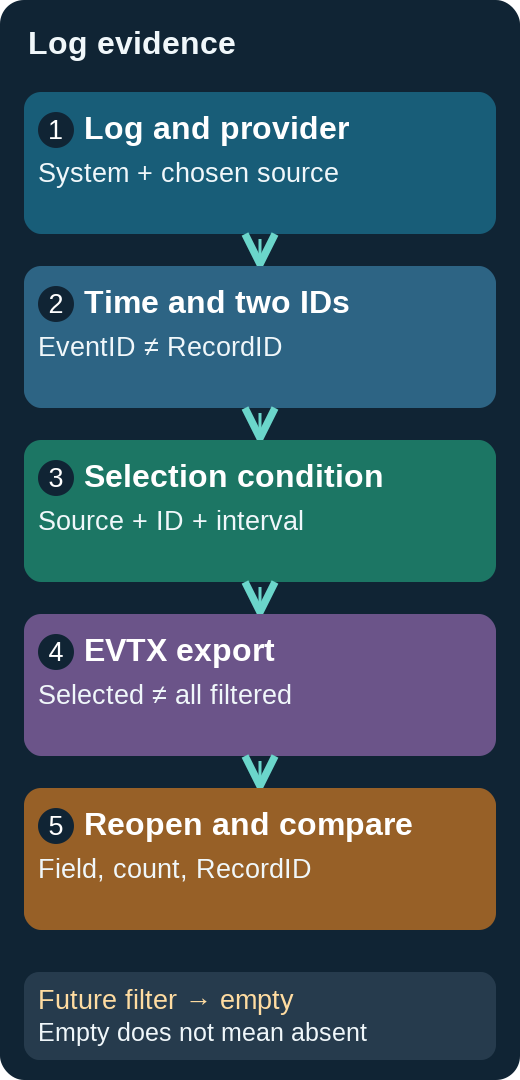
Preserve the selection condition alongside its result. An event number loses meaning without its provider.
Lesson 1. Learn Event Viewer
Press Windows + R, enter eventvwr.msc, and press Enter. Event Viewer normally has a left tree, central list, and right Actions pane. Expand Windows Logs → System. Rows show level, time, source, and event ID. The lower pane has General and Details; double-click opens an event separately. Allow the list to load rather than selecting Clear Log.
Viewer mini-practice A: select an existing row and read time, source, ID, and General description. Do not demand a bad event. Mini-practice B: use Details → XML View and locate Provider, EventID, TimeCreated, EventRecordID, Channel, and Computer when available. EventID identifies an event type for that provider. EventRecordID identifies a record within a log rather than an attack type. XML TimeCreated may use UTC marked Z while General displays local time. Record your station’s time zone. Viewer gate: distinguish event and record IDs, identify log/provider, and show where the time came from.
A message may contain machine name, SID, path, address, or username. Keep original EVTX locally in the training environment. Public work needs anonymized text rather than a complete dump. Computer identifies the source, but LAB-PC here is your replacement, not a captured value.
Lesson 2. Learn filtering before interpretation
In Actions select Filter Current Log…. The dialog includes Logged, levels, event sources, an ID field, and further conditions. Filling several fields narrows the selection jointly. A GUI source label can differ from the full XML Provider Name; compare the selected record and preserve both values rather than guessing. Do not copy an ID without its provider and log. Initially leave levels and IDs unrestricted.
Filter mini-practice A: choose Last 24 hours in Logged, accept, and note count and filter indication. Record the condition and use Clear Filter, which removes selection rather than deleting events. Mini-practice B: Logged → Custom range, select a future interval tomorrow if local time is correct. Expect no current records because the condition deliberately excludes them. Return to a past interval. Future records call for examining clocks and range rather than claiming the control passed.
Filter gate: produce and explain an empty result, then restore the original list. An empty future range cannot justify “nothing happened on this station.” d3f0x0’s hands-on article, 2023 discusses native filtering problems; its complex queries are not copied as ready-made detection rules. Verify supported syntax with Microsoft.
PowerShell is familiar, but learn Get-WinEvent before a larger query. Mini-practice A: run Get-WinEvent -LogName System -MaxEvents 3. -LogName selects the log, -MaxEvents 3 bounds returned records, and newest normally come first. Mini-practice B queries a future start below. Get-Date reads time, .AddDays(1) gets tomorrow, and @{...} supplies key/value conditions to -FilterHashtable. Expect no matches, distinct from Access denied.
Get-WinEvent -FilterHashtable @{LogName='System'; StartTime=(Get-Date).AddDays(1)} -MaxEvents 3Command gate: distinguish log, count limit, time condition, and both errors. Record denied access; for no matches examine time and conditions. Get-WinEvent is Windows-only. Microsoft: Get-WinEvent, constructing FilterHashtable.
Lesson 3. Learn export and reopening
EVTX is a saved-log format; CSV is a selected property table. CSV without Message and EventData cannot recreate all original information. Select a record and find Save Selected Events…; the filtered log’s Actions include Save Filtered Log File As…. The first saves selected rows, the second the complete filtered selection. A filename does not make them equivalent.
Export mini-practice A: select one readable System row and save AcademyLab\Reports\one-system-event.evtx. In the display-information language dialog retain the proposed language and record any adjacent resource folder, which may help render messages elsewhere. Mini-practice B: Action → Open Saved Log…, choose the file, and find it under Saved Logs. Compare provider, event ID, record ID, and time. Gate: distinguish a live log from a saved one and identify the same record in the copy. Do not erase the original after exporting.
This example is invented rather than captured. It teaches structure if your VM lacks a useful event:
Training example only, not an exported Windows log:
System | Provider-A | Id=100 | RecordId=801 | 12:10 local | Information
System | Provider-B | Id=100 | RecordId=802 | 12:11 local | Warning
Application | Provider-A | Id=100 | RecordId=55 | 12:12 local | Error
Equal IDs from different providers do not establish equal meaning. Record IDs in different logs do not give a station-wide order. Adjacent minutes still require checking descriptions and subjects. Security 4625 concerns a failed logon; its fields and Logon Type determine context. One 4625 does not equal password guessing. Microsoft’s 4625 description is reference reading rather than a required experiment.
Practice: save your own bounded selection
- Select an existing System event within seven days. Record exact provider, ID, and time. If System is empty, check Application and label the substitution; if both are empty or inaccessible, produce a limitation rather than invented EVTX.
- Apply a corresponding past-range filter with the chosen source and ID. Verify the original row remains. Save all conditions and filtered row count in
Reports\events-method.txtusing Notepad. - Save Filtered Log File As… →
Reports\system-filtered.evtx. Open the saved log and compare count, source, ID, and at least one record ID. Use a new name if it exists. This becomes your own input artifact. - In ordinary PowerShell assign
$lab/$reportsagain as learned in module three. Execute the following separate small System selection. StartTime and EndTime fix bounds;.AddDays(-7)means seven days ago. Select-Object and CSV are already learned. Do not automatically publish Message.
$start = (Get-Date).AddDays(-7)
$end = Get-Date
$events = Get-WinEvent -FilterHashtable @{LogName='System'; StartTime=$start; EndTime=$end} -MaxEvents 10
$events | Select-Object TimeCreated,Id,ProviderName,LevelDisplayName,RecordId |
  Export-Csv -LiteralPath (Join-Path $reports 'events-summary.csv') -NoTypeInformation -Encoding UTF8 -NoClobber
Import-Csv -LiteralPath (Join-Path $reports 'events-summary.csv')
This CSV does not use the GUI source/ID filter and is capped at ten records. Do not demand equal counts; state both scopes. After a read failure, do not export an old $events variable as a new collection. Stop, read the error, repair the conditions, and assign the result again.
- Negative control: reapply the future interval to the live log, explain the empty selection, and clear the filter. The saved past selection should remain readable. Finish with one hypothesis and a testable next action, such as locating official documentation for the provider rather than blocking everything.
Submit anonymized summary, selection method, and comparison; keep EVTX private. Cleanup: clear the temporary filter, close saved logs and windows, and retain training artifacts. Do not clear System, Application, or Security. If a message does not render on another machine, system fields may still be readable. Check display resources rather than confusing absent rendered text with an absent record. Next you will demonstrate restoration of your own artifact from a separate copy.
An event is not yet an incident
Change the conditions and observe this training model. It runs in your browser and does not change your computer.
Select the events you want to include in your explanation.
Choose conditions above to see an explanation of the result.
Independent exercise · Russian
На учебной станции в Уфе дважды менялось состояние демонстрационной службы. В акте нужно указать события именно после начала дневной проверки. Один и тот же Event ID встретился несколько раз, и коллега предложил удалить «дубликат».
Evidence
Все строки из журнала System. Время приведено местное.
09:59:55 | Service Control Manager | 7036 | Record ID 801 | DemoPrint остановлена
10:00:12 | Service Control Manager | 7036 | Record ID 802 | DemoPrint запущена
10:02:21 | Service Control Manager | 7036 | Record ID 806 | DemoPrint остановлена
Окно приёмки — с 10:00 до 10:03.
Assignment
Укажите поля фильтра и какие две строки сохранить в EVTX. Сформулируйте проверку повторно открытого файла, которая обнаружит потерю одного перехода.
Compare your reasoning
После отбора по журналу, времени, поставщику, ID 7036 и имени службы в сообщении остаются записи 802 и 806. Они отражают запуск и последующую остановку. В повторно открытом EVTX должны читаться оба номера и оба состояния с исходными временами. Номер 801 вышел за границу интервала. Разрыв между 802 и 806 сам по себе не показывает потерю при экспорте отфильтрованной выборки.
Personal practice environment
Check an excerpt, find matching lines and compute the SHA-256 of the original text. Temporary data expires after 30 minutes or when you close the environment.
Sign in