
Windows networking: connection, DNS, and built-in diagnosis
Irina sees Wi-Fi but cannot open the training documentation. The icon describes connection state, not every website’s availability. Distinguish interface, address, name resolution, and a service connection first. An interface is a network adapter such as Wi-Fi or Ethernet. An IP address identifies a network node; a gateway forwards traffic to other networks; DNS relates names to network information. A TCP port identifies a service on a node. Testing TCP 443 does not validate HTTPS content, the certificate, or document authorization.
Use your own station and a network you may use, or an isolated VM. Do not enumerate neighboring addresses, scan ports, or change a router’s DNS. The core tools are built into Windows. One public test uses support.microsoft.com, the official site opened in lesson one. If the lab has no internet, perform local work and mark external tests unverified rather than substituting a demonstration success.
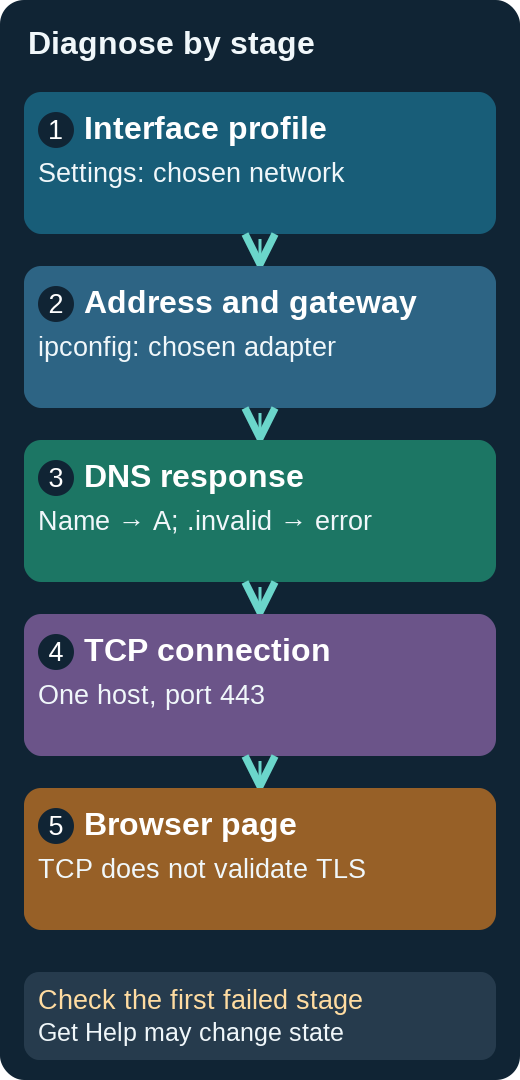
A successful stage narrows the explanation without validating every later stage.
Lesson 1. Identify the active interface in Settings
Press Windows + I → Network & internet. The main card shows connection; Wi-Fi, Ethernet, VPN, and advanced settings appear alongside or below it. A VM may show Ethernet only. Avoid disabling an adapter during remote work or selecting Network reset, which changes the configuration we are reading.
Settings mini-practice A: open the connected network’s Properties. Find connection type and Public or Private profile. The profile affects rules; Private does not encrypt all traffic. Mini-practice B: find Hardware properties or Advanced network settings → current interface properties. Read IPv4 and gateway if visible. Do not publish your SSID, MAC, or organizational addresses; “IPv4 assigned, gateway visible” and an anonymized example are sufficient.
Settings gate: identify the chosen interface, distinguish it from a disconnected VPN, and show the profile. Multiple adapters represent multiple contexts; a disconnected adapter does not disprove working Wi-Fi. Microsoft’s Wi-Fi diagnosis guide also describes built-in help.
Lesson 2. Learn configuration, DNS, and connection queries
Open ordinary Windows PowerShell as in lesson three. ipconfig is an existing Windows utility launched by name; it reads adapter configuration. ipconfig mini-practice A: execute ipconfig, find the adapter selected in Settings, and compare IPv4/gateway. Mini-practice B: execute ipconfig /all; /all adds details including DNS servers. Read the selected interface, avoiding public copies of full output. We use none of /release, /renew, or /flushdns, which change state. Gate: identify the adapter belonging to your chosen rows. Microsoft: ipconfig.
Resolve-DnsName is an existing DNS command. -Name supplies a name and -Type A requests IPv4 records; a real answer may also contain CNAMEs pointing to another name. -DnsOnly limits the query to DNS, avoiding LLMNR/NetBIOS mechanisms. -QuickTimeout shortens waiting. DNS mini-practice A queries a known site; B queries a reserved invalid name. These are commands for your Windows, not author-captured results.
Resolve-DnsName -Name 'support.microsoft.com' -Type A -DnsOnly -QuickTimeout
Resolve-DnsName -Name 'academy.invalid' -Type A -DnsOnly -QuickTimeout
On an available network the first query should produce an address response or an explainable error. A particular IP is not fixed because the site may use a CDN. .invalid should produce a nonexistent-name error. A timeout means a proper negative response was not received and calls for checking DNS availability. An unexpected address reveals an infrastructure answer to investigate, not a discovered academy server. DNS gate: distinguish an address answer, a name error, and no answer. Microsoft: Resolve-DnsName, IETF: .invalid.
Test-NetConnection tests the specified host/port. Mini-practice A: run Test-NetConnection -ComputerName '127.0.0.1' -InformationLevel Detailed. 127.0.0.1 is this computer, not a neighbor. Without -Port, this is a ping test; -InformationLevel Detailed exposes detailed fields. Find PingSucceeded. Mini-practice B: run Get-Help Test-NetConnection -Examples, read a -Port example, and explain the difference from ping. If local help is incomplete, use the official document. Gate: identify ping versus TCP fields and explain why a failed ping does not establish a closed TCP port. Microsoft: Test-NetConnection.
Lesson 3. Learn Get Help before automated repair
On Windows 11 the official Network and Internet troubleshooter route uses Get Help. Find Get Help in Start. Its problem-description field leads to advice cards. Internet access, language, policy, and app availability affect the result; do not download an unknown “Windows repair” substitute.
Get Help mini-practice A: enter network and internet troubleshooter and find the proposed diagnosis. Mini-practice B: read its scope and launch proposal, comparing it with a single-site problem. Do not accept unknown driver-removal or reset actions. Gate: describe what would be checked and why automation differs from reading a screen. The troubleshooter may attempt repairs automatically and cannot be described as strictly read-only.
For the automated branch, use your own VM with saved working state, or your own computer where restoration and losing the current connection are understood. Record start time, proposals, and actual changes. If this prerequisite is absent, complete the main diagnosis with existing commands, marked “Get Help opened; automated repair not launched.” An unverified repair cannot be called successful. Microsoft: Network troubleshooter in Get Help.
Practice: one site and a nonexistent name
- Save
Reports\network-card.txtwith Notepad. Record time and zone, interface, profile, address/gateway availability, and chosen site. Save before any optional network change. - Repeat the known-name DNS query. After an answer, make the single TCP test below.
-ComputerNamesupplies one destination and-Port 443one TCP port; do not expand into a range.
Test-NetConnection -ComputerName 'support.microsoft.com' -Port 443 -InformationLevel Detailed- Read ComputerName, RemoteAddress, RemotePort, InterfaceAlias, SourceAddress, and TcpTestSucceeded. Anonymize addresses in the report. True establishes a connection in this attempt, not an HTTP response. Open the known Microsoft page in a browser and separately record whether it appears or the browser’s exact error.
- Repeat
academy.invalidas the negative control. Its expected name error checks the distinction between DNS failure and an inaccessible TCP service; not every command should return True. - In a prepared VM, optionally run the learned Get Help diagnosis and compare the same DNS/TCP tests afterwards. Otherwise record nonexecution without saying “fixed.”
Training report form, not captured output:
Interface / profile: <observed>
Known-site DNS: <address response / name error / timeout>
TCP 443: <True / False / not attempted>
Browser page: <opened / exact error / not attempted>
.invalid control: <name error / timeout / unexpected answer>
Get Help: <available / absent>; actions actually run: <list or none>
Next step: <specific check at the first unresolved stage>
If DNS answers but TCP fails, check time, the selected adapter, and allowed network restrictions without disabling the firewall. If TCP succeeds but the browser reports a certificate error, check system time and exact address without disabling TLS validation. If the gateway is absent, investigate connection/DHCP before blaming the website. Share only necessary anonymized evidence and the precise problem with the owner.
Produce a card separating stages and an evidence-based next action. Cleanup: close help and the shell; reading commands need no configuration rollback. If automation actually changed configuration, record the change and completed rollback or accepted new baseline. Next you will seek log evidence for the same interval while preserving fields and query limits.
Why a service cannot be reached
Change the conditions and observe this training model. It runs in your browser and does not change your computer.
Choose conditions above to see an explanation of the result.
Independent exercise · Russian
На учебной станции логистического филиала перестал открываться внутренний справочник. Дежурная смена получила разрешение проверить один согласованный адрес. Предыдущий ответ на заявку гласил «проблема с DNS», но измерения уже позволяют сузить область поиска.
Evidence
На активном Ethernet адрес 192.0.2.30/24, шлюз 192.0.2.1. Для условного имени guide.example.test запрос к учебному DNS вернул ожидаемый 192.0.2.45. Test-NetConnection для этого имени и порта 443 показал RemoteAddress 192.0.2.45 и TcpTestSucceeded False. Сведений со стороны сервиса пока нет.
Assignment
Оформите заявку владельцу справочника. Укажите, что удалось проверить на рабочей станции, какой этап завершился неуспешно и какое одно наблюдение со стороны сервиса стоит запросить следующим.
Compare your reasoning
Имя разрешилось в ожидаемый адрес, и тест использовал этот адрес. До 192.0.2.45 на TCP-порту 443 соединение в момент проверки установить не удалось. Попросите владельца подтвердить наличие слушателя на нужном интерфейсе и порту в это время. Если он работал, следующим предметом проверки станет прохождение трафика. Данных для точного вывода о фильтрации пока недостаточно.
Personal practice environment
Check an excerpt, find matching lines and compute the SHA-256 of the original text. Temporary data expires after 30 minutes or when you close the environment.
Sign in