
Windows services and startup type: processes and built-in protection
Processes, services, and built-in protection status
Irina’s inventory contains note.txt, although the program displaying it has closed. A disk file and a memory process have different lifecycles. A process is a running program instance; an application may create several. A service is a component with managed startup and state, often without a visible window. A large process count or the word Stopped does not establish infection.
Continue on your own training Windows. Save work and close unnecessary personal applications before collection so their names do not enter the report. We will not terminate system processes, stop services, or change protection. Built-in OS tools help observe and control state. They do not turn a training inventory into an effectiveness audit of a specialized security product.
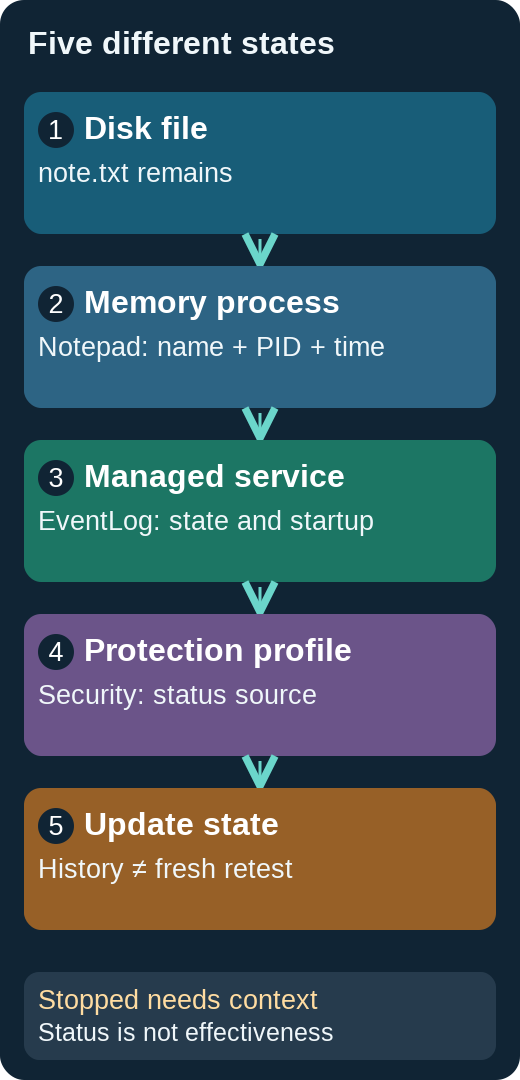
Name, PID, and status belong to different entities. Observation time connects them in one record.
Lesson 1. Learn Task Manager
Press Ctrl + Shift + Esc or find Task Manager in Start. Windows 11 normally places sections on the left; older versions use top tabs. If only a small list appears, select More details. Processes shows applications, background processes, and CPU, memory, disk, and network usage. CPU means processor; percentages show observed load, not intent. Details shows individual processes, while Services shows service state.
Mini-practice A: open Processes and find Task Manager itself. Click CPU to sort, then Name for convenient searching. Avoid End task. Mini-practice B: open your note.txt in Notepad, visit Details, and find Notepad.exe regardless of letter case. If PID is absent, right-click headers → Select columns → PID. A PID is a running process’s numeric identifier. Record name, PID, and time; a later launch may use another number, and numbers can eventually be reused.
If Notepad groups documents into tabs, window and process counts need not match. Relate your application to its row without requiring exactly one PID. Task Manager gate: show an application and an individual process, explain PID, and describe closing Notepad through its own window. Microsoft: Task Manager data, finding a PID.
Lesson 2. Read a service with two existing tools
Press Windows + R. Run has an Open field for launching a named program or management snap-in. Enter services.msc and press Enter. .msc identifies a management-console snap-in file. Services shows name, description, status, and startup type. Double-clicking a row opens Properties. Stop, Start, and the startup-type dropdown change state; we leave them alone.
Services mini-practice A: find Windows Event Log and open Properties. On General read Service name (EventLog), display name, description, path, and state. Mini-practice B: read Dependencies and note listed components. An empty field is a GUI observation, not proof of every possible system relationship. Return to General and exit with Cancel. Gate: distinguish the internal name from its localized display name, and present state from a future-start rule. If launching requires unavailable elevation, decline and use accessible collection below, recording the limitation.
Stopped can be normal for an on-demand service; Automatic describes startup behavior rather than a guarantee of an always-running process. Triggers and hardware also affect services. Purpose and conditions are needed before deciding a stopped row requires starting.
You already learned PowerShell. Before the case, command mini-practice A: run the first query in an ordinary window. Get-Service reads services, -Name uses their internal name, and Select-Object selects three properties. Mini-practice B: query the deliberately absent training name. Expect a missing-service message, not threat detection. If that name actually exists, choose another absent training name rather than deleting a service.
Get-Service -Name 'EventLog' | Select-Object Name,DisplayName,Status
Get-Service -Name 'AcademyDefinitelyMissingService'
Command gate: match EventLog with the GUI and distinguish an incorrect name from Stopped. Do not require StartupType or BinaryPathName properties in Windows PowerShell 5.1; Get-Service properties changed in PowerShell 6+. Here the GUI supplies path and startup type. Microsoft: Get-Service and version changes.
Lesson 3. Read protection and updates separately
Find Windows Security in Start. Its cards represent protection areas. Virus & threat protection shows the provider and available status; Firewall & network protection shows profiles. Built-in antivirus, firewall, UAC, and NTFS are separate OS mechanisms. Another installed provider may appear or limit settings; an absent expected switch does not establish absent protection.
Security mini-practice A: read Virus & threat protection and record provider and visible update/scan time, if available. Do not scan or add exclusions. Mini-practice B: return and open Firewall & network protection, identifying the active profile and visible state. Do not disable the firewall for a connection test. Gate: identify two separate status sources and something they cannot prove, such as detection quality for an unknown threat. Microsoft: the security application.
Open Windows + I → Windows Update. Update mini-practice A: read current status, last-check time, and a pending restart if shown. Check for updates may start downloads and installation; do not press it for this inventory. Mini-practice B: read Update history and identify one entry’s name and date, then return. Gate: distinguish an installed-history entry from a currently pending restart. Schedule updating separately on your own machine; state after restart is a new check, not an inference from the old screen. Microsoft: installing updates.
A specialized security product may have its own agent, console, license, policy, and log. For further study in a Russian context, use a Russian vendor, such as Dr.Web Security Space or the business Dr.Web Desktop Security Suite. In the official Dr.Web documentation catalog, choose exact product, Windows, language, and available version. This is optional reading, not installation or a promise of a free business console. Do not run two antivirus products together for comparison. Certification depends on an exact release and its documents; this lesson makes no certification claim. An agent’s process name does not establish successful policy delivery or forwarding events to a server.
Practice: your process and a working baseline
- Open Files\note.txt and record the observed Notepad PID and time. Use Notepad to save
Reports\station-baseline.txtwith the following form, using your observations rather than someone else’s expected status. - Save and close only your own Notepad windows normally. Wait for Task Manager to refresh. Record whether the PID disappears. If it remains, record that result: modern versions may manage tabs and lifecycle differently. Do not force termination to manufacture an expected result.
- Negative control: find
note.txtin Explorer again. It should remain on disk after the editor closes. This checks file versus process, not absence of hidden malware. - Read EventLog in the GUI and command near the same time, then complete Security and Update observations. If they differ, reread the same object and record both times. For unknown status, choose a particular follow-up check rather than an arbitrary repair.
LAB-PC; observation time and time zone: <value>
Notepad: <name/PID>; after ordinary close: <actual observation>
File note.txt still present: <yes/no>
EventLog: <internal/display name/status/startup type/source>
Antivirus provider / visible state / timestamp: <value or unavailable>
Active firewall profile / state: <value>
Update current state / one history entry: <value>
Limit: observation is a snapshot; effectiveness not tested
Next step: <specific check, owner, and expected evidence>
Submit the baseline without full names of private applications. If access is denied, retain the limitation rather than inventing green status. Cleanup: close management windows and keep the baseline for the capstone. No service or protection switch was changed. Next you will connect the network profile with careful availability diagnosis.
What your computer stores
Change the conditions and observe this training model. It runs in your browser and does not change your computer.
A filename is not the whole story. Try revealing its extension.
Choose conditions above to see an explanation of the result.
Independent exercise · Russian
Смена поддержки упаковочной линии принимает Windows-стенд после занятия. На экране завис учебный Блокнот с сохранённой заметкой. В заявке разрешено закрыть его окно и снять показания службы и встроенной защиты.
Evidence
Диспетчер задач связывает окно Блокнота с PID 4612. Служба журнала событий EventLog имеет состояние Running и тип запуска Automatic. Защита в реальном времени включена. Центр обновления Windows требует перезапуска для завершения уже установленного обновления, время перезапуска не согласовано.
Assignment
Составьте запись передачи смены. Разделите действие над учебным процессом, состояние службы, показание защиты и незавершённое обслуживание. Назовите два наблюдения после закрытия окна, подтверждающие границу выполненного действия.
Compare your reasoning
Закройте учебный Блокнот и сразу проверьте исчезновение его окна и завершение связанного с ним процесса 4612. Повторное чтение состояния EventLog должно показать Running. В карточке отдельно остаются включённая защита и ожидаемый перезапуск системы. Для завершения обновления сменщику потребуется согласовать окно. Состояние одного пользовательского приложения не даёт основания менять тип запуска службы.
Personal practice environment
Check an excerpt, find matching lines and compute the SHA-256 of the original text. Temporary data expires after 30 minutes or when you close the environment.
Sign in